All posts by bsdman

Currently working as an IT Manager. Worked for an OIT company as a Network Engineer in 2011. Worked for a Medical IT company as the Network Administrator 2009-2011. Worked as the Senior Systems Administrator at a computer reseller from 2005-2009. Worked as a Computer Consultant for several small companies from 2007-2009. Worked as a Computer Technician at a computer reseller from 2002-2004.

Networking 101

I’m going to try to make this as easy to understand as possible so bear with me. It’s a very geeky topic and I’m not usually a great writer, so I’ll try to not make it incredibly boring. Or long. Well, it’ll probably be long, but it should be a decent read.

OSI Model
First we have to at least look at the OSI (Open System Interconnection) model. You don’t have to completely understand it, but a few reference points would be mighty handy.
There are 7 layers to the OSI model:
1.) Physical Layer – The actual physical connection (modem cable, serial cable, ethernet cable, etc)
2.) Data Link Layer – Provides the functionality and means to transfer data (MAC Addresses)
3.) Network Layer – IP layer (TCP and UDP)
4.) Transport Layer – Provides reliability controls to the layers above (QoS)
5.) Session Layer – Mechanism for opening and closing sessions
6.) Presentation layer – Encryption layer, also responsible for formatting data for the Application layer
7.) Application Layer – Final layer in which applications (Web browser, Email client) take the formatted data and display it for the user

Keywords
Next I’d like to try out keywords – just to see if you know what is what.
ICMP – Internet Control Message Protocol, or Ping, is used to send error messages regarding host connectivity
Packet – Payload of formatted data sent by network devices
MAC Address – Media Access Control address is a unique physical ID embedded on every network device. It’s a 48bit address of six groups of 2 digits separated by hyphens or colons (01-23-45-67-89-ab)
IP Address – Internet Protocol address is a numbered 32bit address consisting of four groups of 3 digits separated by periods (127.0.0.1 and 192.168.1.1)
Switch – a switch is a device with multiple ethernet ports that connects network devices
Router – Chooses paths for packets and connects different networks together
Ethernet – Patch cable, consists of 8 wires with an RJ45 connector. It’s like a phone cable on drugs.
QoS – Quality of Service. Allows for certain traffic to be flagged at higher priorities than other traffic. Usually Servers beat out clients, and IP Phone conversations beat out web browsing.
Duplex – Full or half duplex. Full duplex means a network connection can send AND receive at the same time at the same speed. Half duplex is a walkie-talkie system in which the system must wait for a free moment to speak.
WAN/LAN – Wide area network/Local area network. WAN refers to an internet/cloud connection, LAN refers to any locally connected devices. WLAN refers to Wireless Local Area Networks.
NAT – Network address translation. Allows for several systems to use the same public IP address at the same time.
Ports – a connection on a switch, hub, or router.
TCP Ports – Ports are added onto TCP/UDP packet headers for destination use. Ports range from 0 to 65535. Port 80 is used for web browsing.

I already know that I will have to write up another one for IPv6 information. This is only for IPv4. IPv4 addresses are said to be exhausted by June 2011.

What is an IP address?
The basic building block of the internet is the IP address. IP addresses (IPv4 anyway) are 4 sets of numbers 0 through 255 separated by a ‘.’ Examples include 4.2.2.2, 192.168.1.1, 172.16.40.254.
There are Class A, Class B, Class C, Class D, and Class E networks (for all of our purposes you only have to remember AB and C).
Class A: 128 available networks each having 16,777,216 IP addresses. Start address is 0.0.0.0 end address is 127.255.255.255
Class B: 16,384 available networks each having 65,536 IP addresses. Start address is 128.0.0.0 end address is 191.255.255.255
Class C: 2,097,152 available networks each having 256 IP addresses. Start address is 192.0.0.0 end address is 223.255.255.255
Class D: Used for multicast on networks, reserved for private use. Start address is 224.0.0.0 end address is 239.255.255.255
Class E: Reserved but not in use. Start address is 240.0.0.0 and end address is 255.255.255.255
Unfortunately not all IP address can be used – there are quite a few that are reserved for private purposes:
0.0.0.0 through 0.255.255.255 is known as the Zero Addresses and cannot be used currently.
10.0.0.0 through 10.255.255.255 is a private IP address scheme for Class A. These are unroutable IP addresses (they only exist in private networks).
127.0.0.0 through 127.255.255.255 is a localhost/loopback address range. 127.0.0.1 is always set as the localhost and can not be routed to the internet.
169.254.0.0 through 169.254.255.255 is for zeroconfig addresses when a DHCP server is not working or present on the network.
172.16.0.0 through 172.31.255.255 is a private IP address scheme for Class B. These are unroutable IP addresses (they only exist in private networks).
192.168.0.0 through 192.168.255.255 is a private IP address scheme for Class C. These are unroutable IP addresses (they only exist in private networks).
224.0.0.0 through 239.255.255.255 is reserved for multicast use. These are unroutable IP addresses.
240.0.0.0 through 255.255.255.255 is reserved and not used in the routing of internet IPs.

What the heck is Netmasking?
Netmasking is a way to differentiate between networks. This is also called subnetting. In the early days of the internet, if a company needed more IP addresses than a Class B network (say 67 thousand IP addresses were “needed”), they’d have to get either 2 class B networks (need 67 thousand, given 131 thousand) or a class A network (need 67 thousand, given 16 million). Now we have a way to lower the number of IPs given out for each class.
You may have seen the netmask 255.255.255.0 before – it’s the most common for home networks. You probably have an IP address of 192.168.1.50 with a netmask of 255.255.255.0. The 255’s mean that the network you are currently on must match. So your network is 192.168.1.0 through 192.168.1.255. If you had a subnet of 255.255.0.0 your network would be 192.168.0.0 through 192.168.255.255. If you had a subnet of 255.0.0.0 your network would be 192.0.0.0 through 192.255.255.255. See how that works?
And yes, you can divide it further – since there are only 2 million available class C networks we can divide them further:
192.168.1.0 with a netmask of 255.255.255.128 would mean that you have the network 192.168.1.0 through 192.168.1.127. If you have 192.168.1.128 with a netmask of 255.255.255.128 that would mean you have 192.168.1.128 through 192.168.1.255. That gives you 128 hosts.
Ah, but we can do better than that. What if you only want 16 hosts? 192.168.1.0 netmask 255.255.255.240. IP range would be 192.168.1.0 through 192.168.1.15. It’d also be a range of 192.168.1.16 through 192.168.1.31. Also 192.168.1.32 through 192.168.1.47. See how that works?
Each of these networks is different. In the last example with the netmask of 255.255.255.240, we see that all of the IP addresses have a 192.168.1.X start. But a computer with an IP of 192.168.1.4/255.255.255.240 could NOT ping a computer with an IP of 192.168.1.18/255.255.255.240 without the use of a router.

What’s so special about routers?
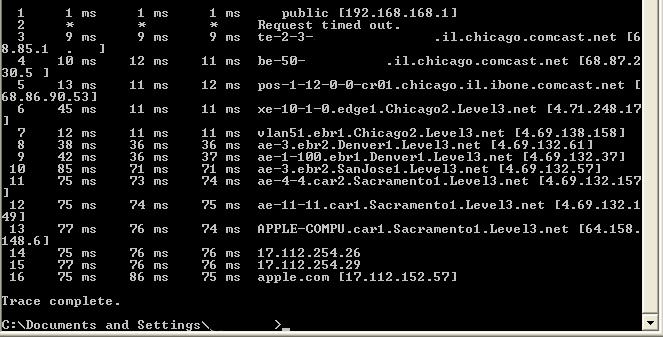
A router, or layer 3 switch, is required to connect different networks. If you were to run a trace route to apple.com, you will see that many routers are necessary for your packet to succeed. Here’s mine:
tracert
As you can see, my ping goes through the following:
A computer at 192.168.168.151 - My computer
A router at 192.168.168.1 - Local
A router at 68.85.1x.x - neighborhood
A router at 68.87.230.5x - Central Office
A router at 68.86.90.53 - Chicago backbone provider
A router at 4.71.248.17 - Chicago backbone provider
A router at 4.69.138.158 - Denver backbone provider
A router at 4.69.132.57 - San Jose backbone provider
A router at 4.69.132.157 - Sacramento backbone provider
A router at 4.69.132.149 - Sacramento backbone provider
A router at 64.158.148.6 - Apple Sacramento backbone provider
A router at 17.112.254.26 - Apple router
A router at 17.112.254.29 - Apple router
A webserver at 17.112.152.57 - Apple.com
That’s 12 routers just to get to apple.com. Impressive.
You’ll see that there are 12 different networks connected via a series of routers. None of this would be possible without these routers.

How does this all work?
MAC addresses, route tables, and a lot of configuration. Without getting too advanced (Keep It Simple Stupid KISS):
A switch will “remember” what port each MAC address is from. If the switch doesn’t know a MAC address source, it will write the MAC address and port number to it’s memory for future reference. If a switch doesn’t know the MAC destination, however, it will flood every port with the data. If no network responds, the switch simply throws out the packets of data.

A router will “remember” what port each MAC address is from. Remember that MAC addresses are physical addresses at the Layer 2. IP addresses are at Layer 3, so a conversion takes place:
Computers A and B are connected to a Switch. Computer A (192.168.1.2, MAC of 00-00-00-00-00-01) wants to send information to Computer B (192.168.1.3, MAC of 00-00-00-00-00-02). Computer A sends the packet to “192.168.1.3”. The switch looks in it’s table for that IP address. If it finds the IP, it then grabs the associated MAC address and finds what port that MAC is connected to. It then sends the data out that port. If the switch does NOT find the IP, it will send out the data to each port on the switch except the port it came from. If it gets a response, it will record the MAC address and port from the respondee. In our case, it’s computer B with 00-00-00-00-00-02.

What’s the difference between a router, a switch, and a hub?
A router routes, a switch switches, and a hub… well a hub just kinda sits there. Technically speaking, a Router will connect networks together, a switch will allow different network devices to communicate on the same network, and a hub extends the physical network. A hub is shared networking – if you have a 10/100 hub with 8 ports, each of the ports will share the total bandwidth of 100Mb. Hubs are half-duplex and are referred to as “dumb”. Switches are full-duplex and each port gets the entire bandwidth allotment. Many home routers also include a switch. A common example is a Linksys wireless router – it will include a WAN port, 5 LAN ports, and a pair of antennas.

So what about this layer 3 stuff?
The most common layer 3 protocols are TCP and UDP. While both protocols are basically the same in terms of the header/source/destination, they differ greatly in terms of usage. TCP is used when data integrity is required. Each packet of data is numbered and acknowledged. If a packet is “missing”, the computer will resend the same packet to the destination. UDP, on the other hand, has no integrity check. If a packet is received out of order it is discarded by the destination. Why would you want to discard out of order packets and not have the sender resend them? IP Phones, streaming video, streaming audio. Can you imagine talking on the phone and having parts of your conversation show up later? UDP is great for Live events – events where a delay is not accepted. TCP is used when integrity is required – grabbing email, downloading files, etc.

How about this “private” and “public” IP stuff?
Private IP addresses are those that can not be routed through the internet. Although technically you can use a “private range” of 17.112.152.x with a subnet of 255.255.255.0 on your home router, you would not be able to visit any apple websites. So, to keep things easier for everyone, the most common Private IPs are: 192.168.x.x, 172.16.x.x-172.31.x.x, and 10.x.x.x.

How is that different from your public IP? Most home users have a single Public IP, and usually it’s not statically assigned (meaning it can and will change if you ever lose your internet connection). Visit http://whatismyip.com sometime and see what your public IP address really is. We’ll assume that your private IP is 192.168.1.2 and your public IP is 17.112.152.57. A simple host lookup on the public IP will yield apple.com. If you were to ping apple.com, you will receive a response from the public IP (still 17.112.152.57). How can the two IP addresses be different? Because you have a router!

If you have a home network with 4 computers connected (2 laptops, a desktop, and an Xbox360), each has their own private IP (192.168.1.2, 192.168.1.3, 192.168.1.4, and 192.168.1.5 respectively), but they all share your public IP of 17.112.152.57. There is a process known as NAT that allows each of these devices to share a single public IP address. Every request sent outward to the internet gets modified by the router to have a unique source port. That way when the data comes back the unique source-turned-destination port will allow the router to “remember” which system requested the data. So if you’re browsing the web on your laptop while downloading updates on the xbox, there should be no conflicts of data.

Ports? What’s port 443?
Common ports are easy to find out. When you send for information from a website, it will run under port 80. If you want to request from a secure website, it will run under port 443. Common ones:
21 FTP
23 telnet
25 SMTP
53 DNS
80 HTTP
110 POP3
443 HTTPS
Your router will request the page on your behalf, sending the request to port 80 at apple.com. But it will inject port 57803 (random port number) as the source. When apple.com replies, the source is port 80 and their destination is your router at port 57803. The router then knows that you were requesting the information and forwards it onto you. Obviously this is done much more rapidly than I can type or you can read.

Hopefully that helps a little bit with the understanding of IPs and networking. I’ve only touched the surface when it comes to explaining all of this. And since I’m more of a visual learner, I’ll probably draw some pictures eventually.

HTTP/1.1 507 Insufficient space to store resources

It doesn’t happen too often that I come across an error that I haven’t seen before.

Customer is running Exchange 2003 on a native 2003 server infrastructure. Users would log into the webmail area but when they’d click on any emails to read the nasty 507 error would show up. Another issue was that webmail was up-to-date but the local outlook client was not. Local client would say it was connected to Exchange, but would not actively update folders. Forced updates yielded no results.

A quick check of the eventlog showed this:

Source: MSExchangeIS
Category: Performance
Event ID: 9582
Description: The virtual memory necessary to run your Exchange server is fragmented in such a way that normal operation may begin to fail. It is highly recommended that you restart all Exchange services to correct this issue.

Well that’s an easy fix. I shut down the services:
IMAP4
Management
MTA Stacks
POP3
Routing Engine
Information Store
System Attendant

And then started them back up in the reverse order. Everything checked out OK. Now to get them to upgrade to Exchange 07/10…

Internet Connection Speeds

I figured I’d put this out so someone can read it all in one place.

Analog copper moved onto digital copper moved onto fiber optics. The best way to describe bandwidth and latency is to think of it this way:
Bandwidth is how much water can go through the pipe, latency is how much pressure. Or, bandwidth is how many lanes the road has and latency is how fast the cars are moving. Or (another car one) bandwidth is how fast the cars can drive and latency is how fast they can accelerate.
Narrowband references anything less than 56Kbps. Broadband references anything greater than 56Kbps.
FTTN – Fiber to the node – Connects the ISP to a street cabinet in your neighborhood via Fiber, and then copper to your home.
FTTC – Fiber to the Capinet/Curb – Connects the ISP to a cabinet within 300m of your home, and then copper to your home.
FTTB/FTTH – Fiber to the building/basement Fiber to the Home – Fiber comes all the way to a hand-off just outside of the living area of the home.

9600 baud modem. A whopping 1.2KB/sec. Still in use for null serial connections to many network devices.
14.4 modem. Analog, standard RJ11 phone line. 1.8KB/sec
19.2 modem. Analog, standard RJ11 phone line. 2.4KB/sec
33.6 modem. Analog, standard RJ11 phone line. 4.2KB/sec
56k flex modem. Analog, standard RJ11 phone line limited to 53kbps on the lines. 7KB/sec

64Kbps ISDN. Digital, standard RJ11 phone line. 64Kb in both directions. 8KB/sec
128Kbps ISND. Digital, standard RJ11 phone line. 128Kb in both directions. 16KB/sec

xDSL. Digital/Analog, usually running over standard RJ11 phone lines. Ranges from 128Kbps to 24Mbps. 16KB/sec to 3072KB/sec (theoretical max of 50Mbit)
Cable. Digital, usually running over RG59 coaxial cable. Ranges from 256Kbps to 50Mbps. 32KB/sec to 6400KB/sec (theoretical max of 400Mbit)

DS0 – Copper – 64Kbps. 8KB/sec
DS1 (T1) – Copper – 1.544Mbps.
DS2 (T2) – Copper – 6.312Mbps.
DS3 (T3) – Copper – 44.736Mbps.
DS4 (T4) – Fiber – 274.176Mbps.
DS5 (T5) – Fiber – 400.352Mbps.

OC1 – Fiber – 51.84Mbps. 6635.52KB/sec 6.48MB/sec 0.006GB/sec
OC3 – Fiber – 155.52Mbps. 19906.56KB/sec 19.44MB/sec 0.019GB/sec
OC12 – Fiber – 622.08Mbps. 79626.24KB/sec 77.76MB/sec 0.076GB/sec
OC24 – Fiber – 1244.16Mbps. 159252.48KB/sec 155.52MB/sec 0.152GB/sec
OC48 – Fiber – 2488.32Mbps. 318504.96KB/sec 311.04MB/sec 0.304GB/sec
OC96 – Fiber – 4976.64Mbps. 637009.92KB/sec 622.08MB/sec 0.608GB/sec
OC192 – Fiber – 9953.28Mbps. 1274019.84KB/sec 1244.16MB/sec 1.215GB/sec
OC768 – Fiber – 39813.12Mbps. 5096079.36KB/sec 4976.64MB/sec 4.86GB/Sec

Issue Copying Startup Files To USB Flash FreeNAS

I wanted to try out FreeNAS (based on FreeBSD but with quite a few awesome ‘NAS-like’ features) on a system at a jobsite:
System has 5x 2TB drives in RAID5 (6.7TB usable for storage) hotswappable, 2.5GHz Dual Core Pentium, 4GB DDR2 1066 RAM, 3x 10/100/100 NIC, FreeNAS .7 stable.

I got everything up and running without a problem (it is quite easy), running it off a 1GB USB Flash drive I had lying around. But I wanted to continue using my flash drive for other things and found an unused 128MB flash drive that no one would ever use again. I’d rather waste 128MB than 1024MB…

Formated the 128MB into FAT
Plugged the 128MB flash into the FreeNAS server while it was off
Booted the FreeNAS server using the FreeNAS .7 CD
Pressed 9 to install embedded onto the flash drive

Mount CDROM.
Installing system image on device da0.
gzip: stdout: broken pipe
Error: Failed to dd image on ‘/dev/da0’!
Unmount CDROM.
There was a problem while copying files.
Press ENTER to continue.

Argh. So I checked the flash drive on the main PC again – FreeNAS had written a config file and folder to the device!

It looks like if you boot up the system with a USB flash drive installed, the config file will always be written and you can’t format the device. So just plug the drive in AFTER everything is booted up.

Wiped 128MB again and formatted FAT
Plugged 128MB into FreeNAS - Auto mounted the device as da0
Try 9, 1 again

Mount CDROM.
Installing system image on device da0.
GEOM_LABEL: Label for provider da0a is ufsid/************.
Unmount CDROM.
FreeNAS has been installed on da0.
You can now remove the CDROM and reboot the PC.

So I did just that.

Block DNS DD-WRT

Here’s the project:
Secure a wireless access point for vendors/non-work-computers to use. Disallow access to anything that eats up bandwidth – it’s supposed to be a tool and not a play thing.

Background:
A primary internet connection has 62 public IP addresses. One is pointed to a WRT54-G (v1) router. I installed dd-wrt (v24 preSP2 build 13064) and configured accordingly. I signed up for OpenDNS service to block all the “bad stuff”.

Problem:
Merely putting in the DNS information into the DHCP server is not enough. Any savvy tech user can add their own DNS information into the equation and go from there. I needed a way to block DNS (port 53) on the router side of things so that no outside influences could bypass the security. DD-WRT was configured to block port 53, but that didn’t really work out too well. So I ended up adding my own iptable chain to the router not to block other DNS, but to force it to go through the router’s DNS. Makes things easier in the long run.

Solution:

Log into the router
Click on the Administration Tab
Click on the Commands Tab
In the commands box, paste the following:
iptables -t nat -A PREROUTING -p udp -i br0 --dport 53 -j DNAT --to $(nvram get lan_ipaddr)
iptables -t nat -A PREROUTING -p tcp -i br0 --dport 53 -j DNAT --to $(nvram get lan_ipaddr)
Click Save Firewall

After it reboots, test it out. Use 4.2.2.2 as a test DNS server to verify. Awesome, I know.

Security:
WRT54-G running DD-WRT with a non-standard password
SSID is not being broadcast
WPA2 Personal with AES Encryption
WRT54-G is connected to a portion of the main internet pipe on a public IP but is VLAN’d off from the rest of the network
DD-WRT admin access is not allowed over the WLAN
OpenDNS is blocking almost all access
DD-WRT does NOT allow connections before 7AM, after 7PM, or on weekends
I’m wearing pants

OK, had to lighten the mood a little bit. But that’s the gist of it.

Install Nagios on Ubuntu 9.x, Client on Windows

This is how I got nagios to install on my Ubuntu 9.10 x86 server (LAMP):
***EDIT*** I’ve upgraded the 9.10 x86 server to 10.04LTS x86 and Nagios is still running like a champ. FYI.

This assumes you’ve already got LAMP up and running on the box and have at least a little common sense when it comes to linux commands. I still use putty to connect via SSH to my box. I also cheated and made it so I don’t do sudo (sudo passwd root, then su into root). If you don’t want to do that, just add ‘sudo’ in front of all the commands.

Update your box:
apt-get update
apt-get upgrade
apt-get dist-upgrade

Install the GCC compiler development libraries:
apt-get install build-essential

Install GD development libraries:
apt-get install libgd2-xpm-dev

Create a new user “nagios”:
useradd -m -s /bin/bash nagios

Make a password for the new user:
passwd nagios

Create a new group “nagcmd”
groupadd nagcmd
usermod -a -G nagcmd nagios
usermod -a -G nagcmd www-data

Download the nagios files – I use /home/username as my download point:
wget http://prdownloads.sourceforge.net/sourceforge/nagios/nagios-3.2.0.tar.gz
wget http://prdownloads.sourceforge.net/sourceforge/nagiosplug/nagios-plugins-1.4.14.tar.gz

Extract and compile the files:
tar xzf nagios-3.2.0.tar.gz
cd nagios-3.2.0
./configure --with-command-group=nagcmd
make all
make install
make install-init
make install-config
make install-commandmode
make install-webconf

Create a nagiosadmin account for the web interface:
htpasswd -c /usr/local/nagios/etc/htpasswd.users nagiosadmin

Restart Apache
apache2ctl restart

That should be it for the installation phase of the main application. You can verify that everything works by viewing the site: http://localhost/nagios (or http://ipofserver/nagios) and logging in using nagiosadmin/thepasswordyoupicked. But now we should probably put the plugins in place before actually going through any other setup.

Unpack the plugins:
tar xzf nagios-plugins-1.4.14.tar.gz
cd nagios-plugins-1.4.14

Configure and install the plugins:
./configure --with-nagios-user=nagios --with-nagios-group=nagios
make
make install

Verify that the sample nagios configuration files are fine:
/usr/local/nagios/bin/nagios -v /usr/local/nagios/etc/nagios.cfg

If there are no errors you can start nagios:
/etc/init.d/nagios start

http://localhost/nagios
Click on the Tactical Overview navbar link to see all that’s monitored right now. This may take a few moments to load as to not “kill” the machine with requests.

http://www.monitoringexchange.org/

INSTALL CLIENT ON WINDOWS MACHINE(S):
I’ve installed on WindowsXP 32, Windows Server 2003 32/64, and Windows 7 64bit without any issues.

Setting up for Windows Machine monitoring is a little more in depth:

Download the NSClient++:
http://nsclient.org/nscp/downloads
Extract to the C:\ directory
Open a CMD prompt and navigate to C:\NSClient++-0.3.7-Win32

Install the Service and System Tray:
The system tray gave me some issues on a Windows 7 x64 box. FYI.
nsclient++ /install
nsclient++ SysTray -install

Configure the NSClientpp Service:
Open up services (services.msc) and find NSCLientpp (Nagios)
Right-Click and select properties
Click on the Log On tab and make sure the Local System account can interact with the desktop

Edit the INI file:
Navigate to C:\NSClient++*\
Edit NSC.INI

Uncomment the following:

FileLogger.dll
CheckSystem.dll
CheckDisk.dll
NSClientListener.dll
NRPEListener.dll
SysTray.dll
CheckEventLog.dll
CheckHelpers.dll

Uncomment the hosts allowed file – either add the IP address of the Nagios server or just leave it blank and it will accept from all IPs.

Save the file, Start the service – I’ve had it work without interact with desktop, but it was recommended by Nagios to enable that feature.

Back on the Nagios server, edit the /usr/local/nagios/etc/objects/windows.cfg file to the liking of your windows machine.
You may have to add the host name/ip to your /etc/hosts file to rid yourself of errors

Verify your setup can run:
/usr/local/nagios/bin/nagios -v /usr/local/nagios/etc/nagios.cfg
Then restart nagios:
/etc/init.d/nagios restart

Now you should be done. Login to your http://serverip/nagios site with your nagiosadmin/passwordyouchoseearlier account information.

As a side note, I also edited /usr/local/nagios/etc/nagios.cfg for the admin_email= to send email to my account. I already have postfix installed from another project, so it *should* send me alert emails. AND I found that you have to edit /usr/local/nagios/etc/objects/contacts.cfg as well. After editing make sure you restart the nagios service.

***EDIT***

I was receiving the emails just fine, but they were coming from the “wrong domain”. Ubuntu/debian puts the domain name by default in the /etc/mailname file. Edit that file and then reload postfix.
nano /etc/mailname
postfix reload

If the file does not exist (you’re creating a new file with nano), type in your domain name (ie thelibrarie.com), and then save the file. Then edit the postfix configuration and uncomment myorgin.
nano /etc/mailname
nano /etc/postfix/main.c

myorigin = /etc/mailname

And then try it again. You can test it out by sending yourself some mail:
mail -s test username@domain.tld
body
Control + D
Control + D

I also realized that I put how to install the client on Windows machines, so I should probably mention that in the subject, eh?

***EDIT***
OK, I had to add another user to be able to view the status of the systems.
Add the User:
SSH to your nagios system
htpasswd /usr/local/nagios/etc/htpasswd.users USERNAMEHERE
apache2ctl restart

Add the permissions:
nano /usr/local/nagios/etc/cgi.cfg
Search under GLOBAL HOST/SERVICE VIEW ACCESS
Change:
authorized_for_all_services=nagiosadmin
authorized_for_all_hosts=nagiosadmin
to:
authorized_for_all_services=*
authorized_for_all_hosts=*

Or you can comma-delimit the users. Either way, I win.

Restart nagios.
/etc/init.d/nagios restart

***EDIT 2***
Need more plugins? http://nagios.manubulon.com/

***EDIT 3***
There will be a new post regarding editing Nagios to add images to the map/new users/parents of configurations etc.

PHPSysInfo and LM-Sensors

I wanted to get phpsysinfo working with the hardware sensors suite known as lm-sensors, but I really didn’t feel like working through all the problems myself. But, despite my attempts to be lazy, I actually had to work a little bit at this.

First of all, this is running on an Ubuntu Server 9.10 x86 – 2.6.31-14-generic-pae to be exact – using an old Dell Precision 360 box to be even more exact. I installed phpsysinfo version 2.5.4 and edited the config.php file to enable lm-sensors hardware monitoring.

Unfortunately I get this error when I navigate to http://myserverip/phpsysinfo:

No sensors found!
Make sure you loaded all the kernel drivers you need.
Try sensors-detect to find out which these are.
Return value: 0

Wonderful. So I have to install lm-sensors. Now another site told me to do the following:
sudo apt-get install lm-sensors i2c-tools read-edid sensord hddtemp sensors-applet
After the lengthy download (153MB I believe), hddtemp needed some input. The defaults are fine – I selected to start the hddtemp service every reboot and run it on the default port 7634 as this is an internal only server. If it’s an externally facing server you may want to exercise some caution when opening ports.

You can verify that this is working by navigating to http://yourserverip:7634
In my case I see:

|/dev/sg0|ST380011A|38|C||/dev/sda|ST380011A|38|C|

Which I can see the Seagate HD that’s 80GB IDE with two mount points running at 38C (100.4F).

Now to setup for other sensors. Go back to your terminal session and type:
sudo sensors-detect
Hit YES for everything. When the script finishes you should probably reboot:
reboot

Reload your http://yourserverip/phpsysinfo page – you should now see a bunch of other stuff added at the bottom:
lm-sensors