Category Archives: Linux

The Linux Category actually encompasses *BSD, RH, Fedora, Ubuntu, and the like.

Installing SNORT on Ubuntu 10.04

My company recently removed a Cisco IPS device (pile of crap) along with a Microsoft 2006 ISA Server (more of a pile of crap) from the network infrastructure. It cost too much to maintain licensing, and it was starting to become a huge headache for company growth.

However, the director of IT requested that we still have some sort of logging for potential breaches. Every firewall block in/out is sent to us via email, and every firewall action is kept in a syslog server (and backed up to another syslog server and NAS system), but it would be nice to see the packets and payloads of every network transaction.

Snort to the rescue! Snort is free (well, if you don’t mind having to setup/maintain/administer it without a ton of help and really don’t mind having slightly older rules than paying customers), and doesn’t really require a lot of hardware to get it to work. Our production Snort is running on an HP DL320 1U with a 3.2GHz Pentium 4, 2GB RAM, and a mirror of 80GB SATA. For testing I used VMWare Workstation 7, but I’m sure you can use VMWare Server/ESX/ESXi or Xenapp etc.

The settings I used for VMWare:

I named it SNORT
1 processor, 2 cores
512MB RAM
Bridged Networking single interface (eth0)
SCSI LSI Logic I/O
SCSI 20GB HD Partition Split into 2GB Files
Removed the Floppy Disk

I’m also using Ubuntu Server 10.04 LTS 32bit. Grab that ISO if you don’t already have it. Oh, and since some of my “readers” want me to put this: I grabbed the information used in this post from the ubuntuforums, from bil at play, and from Nick Moore.

I assume that you already know how to load Ubuntu Server. If not, then Snort will probably be a little bit over your head. http://linux.insanelan.com. Ubuntu was loaded with the following settings:

Language – English
Hostname – snortsvr
Time Zone – CDT
Partitioning method – Guided used entire disk
Full name for new user – buddy
Username for account – buddy
Password – buddy (I know it’s weak)
Encrypt home directory – no
Automatic Updates – no
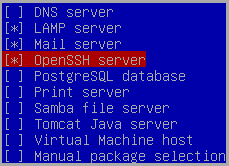
I always install LAMP, Mail, and OpenSSH. Just a standard setup for me.

MySQL Root Password – password
Postfix configuration – internet site
System mail name – snortsvr.local
Load Grub to MBR – yes
Continue, and then it’ll reboot your system.

Login as buddy/buddy. Now I dislike the whole “sudo” crap. It’s my server, I don’t want to have to ask for permission to use it. If this is a shared server – sure go ahead – otherwise do the following:
sudo passwd root
Enter your buddy password
Enter your root password (I put in “password”)
su
Enter your root password

This is optional but I find it a lot easier to SSH via putty to my system than to control it via the VMWare interface.
ifconfig eth0
Make note of your IP address
Open Putty and SSH to your Server (in my case it’s 10.4.0.54)
Login as root

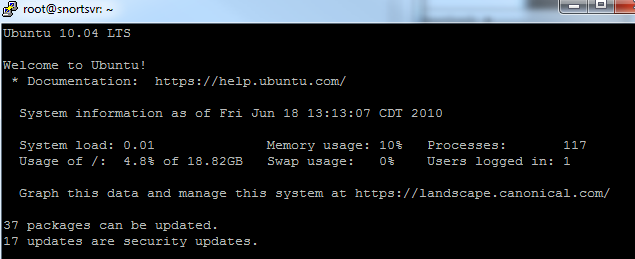
You’ll notice that there will be several packages to update. Update them.
apt-get update
apt-get upgrade

Depending on the speed of your internet connection, you may have time to watch a movie – or maybe it’s already done and you’re wondering why I typed this sentence. Either way, keep reading:

DOWNLOADS AND INSTALLATIONS
Install the following on your Ubuntu system:
apt-get install libpcap0.8-dev libmysqlclient15-dev bison flex apache2 php5 libapache2-mod-php5 php5-gd php5-mysql libtool libpcre3-dev php-pear

Make a directory for you to download stuff:
mkdir ~/snortfiles
cd ~/snortfiles

You’ll need to download the following:
Base 1.4.5
wget http://downloads.sourceforge.net/project/secureideas/BASE/base-1.4.5/base-1.4.5.tar.gz?use_mirror=voxel

ADOdb 4991
wget http://downloads.sourceforge.net/project/adodb/adodb-php-4-and-5/adodb-4991-for-php/adodb4991.tgz?use_mirror=voxel

Barnyard2 1.7
wget http://www.securixlive.com/download/barnyard2/barnyard2-1.7.tar.gz

Setup Snort
apt-get install snort-mysql
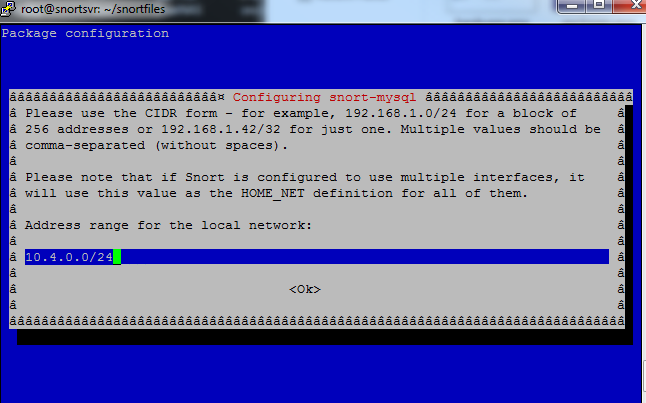
I used my local LAN (10.4.0.0/24)
Click OK
YES – you do want to setup a database for snort-mysql
Click OK
mysql -u root -p
My password is still password

create database snort;
grant CREATE, INSERT, SELECT, DELETE, UPDATE on snort.* to snort@localhost;
SET PASSWORD FOR snort@localhost=PASSWORD('yourpasswordhere');
exit
I used password once again for the password.

cd /usr/share/doc/snort-mysql/
Import the snort DB schema
zcat create_mysql.gz | mysql -u root -p snort

Verify that the import went well
mysql -u root -ppassword
SHOW DATABASES;
use snort;
SHOW TABLES;
You should see 16 rows in the set. If not, then you did something wrong.
exit

Edit snort.conf

nano /etc/snort/snort.conf

Find “var HOME_NET any”, and change it to “var HOME_NET $eth0_ADDRESS
Find “Output log_tcpdump: tcpdump.log” and change it to “#Output log_tcpdump: tcpdump.log
Find “output log_unified” and insert “output unified2: filename snort.log, limit 128” below it.
save and exit

You’re now done installing snort!

Setting up BASE and ABOdb
pear install --alldeps Mail
pear install --alldeps Mail_Mime
pear install --alldeps Image_Canvas-0.3.2
pear install --alldeps Image_Graph-0.7.2

Navigate to your snortfiles folder
cd
cd snortfiles
tar -zxvf adodb4991.tgz
tar -zxvf base-1.4.5.tar.gz
mv adodb /var/www
mv base-1.4.5 /var/www

nano /etc/php5/apache2/php.ini

Find “Dynamic Extensions” and add the following to the end of that section:
extension=mysql.so
extension=gd.so
Find “error_reporting = E_ALL & ~E_DEPRECATED”
Replace with error_reporting = E_ALL & ~E_NOTICE
save and exit

nano /etc/apache2/apache2.conf
Insert the following at the very bottom of the file: “servername snortsvr.local
save and exit

apache2ctl restart

cd /var/www
ln -s base-1.4.5 ./base
chmod a+w base

Open up a web browser and navigate to http://IPADDRESSOFYOURSERVER/base

1.) Set the path to adodb to /var/www/adodb
2.) Database Name=snort
Database Host=localhost
Database User=snort,
Database Password=yourpassword
3.) check use authentication system
Admin User Name=snort
Password=yourpassword
Full Name=snort
4.) Click “Create BASE AG” and click on “step 5”
5.) Test your login and password and verify everything is working OK

chmod og-w base

Setting up Barnyard2

Find where you downloaded Barnyard2-1.7.tar.gz (Home directory anyone? cd ~)

tar -zxvf barnyard2-1.7.tar.gz
cd barnyard2-1.7
./configure --with-mysql && make && make install
cp etc/barnyard2.conf /etc/snort
mkdir /var/log/barnyard2

nano /etc/snort/barnyard2.conf
Find “#config hostname: thor” and change it to “config hostname: localhost
Find “#config interface: eth0” and change it to “config interface: eth0
Find “output database” and insert below that line “output database: alert, mysql, user=snort password=password dbname=snort host=localhost
Save and exit

Starting Snort/Barnyard
snort -c /etc/snort/snort.conf -i eth0
If you see “Not Using PCAP_FRAMES” you’re doing OK!

Open up another Putty session and SSH to your server as root.
ls -la /var/log/snort
Look for a 10 digit suffix on snort.log. If you have more than one file with digits, look at the timestamp and grab the newest one!

nano /var/log/snort/barnyard.waldo
Paste in the following:

/var/log/snort
snort.log10DIGIT NUMBER FROM YOUR SNORT LOG STEP ABOVE
0

save and exit

Run this SINGLE LINE command:
/usr/local/bin/barnyard2 -c /etc/snort/barnyard2.conf -G /etc/snort/gen-msg.map -S /etc/snort/sid-msg.map -d /var/log/snort -f snort.log -w /var/log/snort/barnyard.waldo

Ping your server a few times. Then open up your browser to http://YOURSERVERIPADDRESS/base and see if anything shows up.

Auto Starting Snort
Control + C out of either Snort or Barnyard. Then reboot the server.
reboot

Log back into your server as root using SSH/Putty.
ps -A | grep snort
If nothing shows up (which nothing should), then continue on.
/etc/init.d/snort start
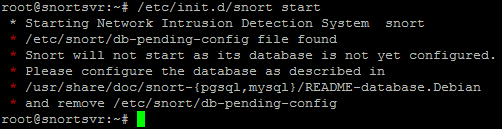
mv /etc/snort/db-pending-config /etc/snort/db-pending-config.orig
/etc/init.d/snort start

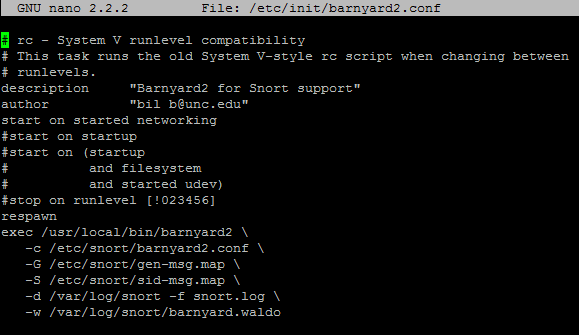
nano /etc/init/barnyard2.conf

# rc - System V runlevel compatibility
# This task runs the old System V-style rc script when changing between
# runlevels.
description "Barnyard2 for Snort support"
author "bil b@unc.edu"
start on started networking
#start on startup
#start on (startup
# and filesystem
# and started udev)
#stop on runlevel [!023456]
respawn
exec /usr/local/bin/barnyard2 \
-c /etc/snort/barnyard2.conf \
-G /etc/snort/gen-msg.map \
-S /etc/snort/sid-msg.map \
-d /var/log/snort -f snort.log \
-w /var/log/snort/barnyard.waldo
save and exit
reboot
Verify Everything Is Working

After your server reboots, log back into it via SSH as root.

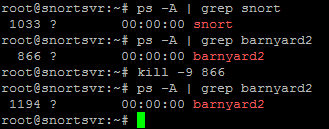
ps -A | grep snort
ps -A | grep barnyard
As long as you see the process ID and the name, you should be OK. You can check that barnyard will auto restart by killing the process ID and then checking to see if it's running. It should have a new ID afterwards.
***EDIT***
I found a much easier solution - install Snorby. Snorby is a pretty nice front-end for Snort. Barnyard is still utilized to take the load off of Snort.
You can grab the All In One solution (installs the OS, MySQL, Snort, Apache, Barnyard, Snorby, Etc) here:
http://bailey.st/blog/snorby-spsa/
Supposedly it auto updates once a day with Oinkmaster, but I haven't really gone through to verify yet. It'd be nice if some of the options were included in the GUI, but for free who am I to complain?

Clone Disk Drive Ubuntu

We’ve all used DD before:
dd if=/dev/sda of=/dev/sdb

But someone pointed out there was a better way – a way that would allow retrieval of data even if the drive was dying. DD was never supposed to be able to do that, so it’s generally not the best tool to use.

apt-get install gddrescue
ddrescue -v /dev/sda /dev/sdb

That’s it.
Oh, I learned about ddrescue from Dimitar Darazhanski’s blog.

Postfix, Dovecot, SMTP Relay

After setting up a BIND DNS on my Ubuntu 10.04 x32 server, I decided I should probably make a mail server too. I wanted to be able to access the mail from my iPhone.

Postfix was installed by default as I needed sendmail for some other php scripts I had previously written/edited. Otherwise you can always apt-get install postfix

I let webmin install dovecot for me. Dovecot is a POP3/IMAP server that will communicate with postfix’s mail system. Basically it’ll read the mail from /var/mail (which I had to edit – more on that later). I then set the DNS name for mail.mydomain.tld using BIND on webmin.

Use webmin and open up Servers > Dovecot
Click Networking and Protocols
I selected POP3
Click Save
Click on User and Login Options
SASL authentication realms: mail.yourdomain.tld
Authentication methods: plain text
Click save
Click on Mail Files
Select Inbox under /var/mail, folders in ~/mail
Click apply configuration

Then I made sure that port 110 was opened up on the firewall and away I went. I could now connect to the server via POP3 on the iPhone and retrieve my mail. However, I could not send mail. The fix for that (Found from Jimmy’s Weblog):
apt-get install postfix-tls sasl2-bin libsasl2 libsasl2-modules
nano /etc/default/saslauthd

START=yes
MECHANISMS=”pam”

nano /etc/postfix/sasl/smtpd.conf

pwcheck_method: saslauthd

nano /etc/postfix/main.cf

smtpd_sasl_auth_enable = yes
smtpd_sasl_security_options = noanonymous
broken_sasl_auth_clients = yes
smtpd_recipient_restrictions =
permit_sasl_authenticated,
permit_mynetworks,
reject_unauth_destination

rm -r /var/run/saslauthd/
mkdir -p /var/spool/postfix/var/run/saslauthd
ln -s /var/spool/postfix/var/run/saslauthd /var/run
chgrp sasl /var/spool/postfix/var/run/saslauthd
adduser postfix sasl

/etc/init.d/postfix restart
/etc/init.d/saslauthd start

Honestly by that time I had changed a few other things in the postfix configuration, so hopefully this still works. If I ever set it up again or do a dry run on a secondary test system (ie if I find the time to QA my own work) then I will most definitely put up any updates. Any issues let me know.

Webmin Install Ubuntu 10.04 LTS Server

Log into your server
wget http://downloads.sourceforge.net/project/webadmin/webmin/1.510/webmin_1.510-2_all.deb
sudo dpkg -i webmin_1.510-2_all.deb
If you get errors, just type sudo apt-get install -f (this will install all the required pre-reqs)

And then I usually update the server:
apt-get update
apt-get upgrade
apt-get dist-upgrade

And then make sure you change the security on webmin:
Login to https://yourip:10000 as your root user
Click on Webmin, then Webmin Configuration
Click on IP access control
Only allow from the following:

127.0.0.1
192.168.1.0
OtherIP
ETC

***EDIT***
http://downloads.sourceforge.net/project/webadmin/webmin/1.570/webmin_1.570_all.deb
http://superb-dca2.dl.sourceforge.net/project/webadmin/webmin/1.580/webmin_1.580_all.deb

BIND, DNS, Godaddy, Ubuntu

Customer purchased Comcast Business cable for their primary internet provider. They also purchase a domain name through godaddy. I used to think godaddy was a horrible/awful/pile of dung, but now that I’m starting to find out where everything is hidden they’re turning out to be moderately OK.

Background:
Ubuntu 10.04 x32 Server LAMP
BIND 9.7.0
Webmin 1.510
Sonicwall TZ180W Enhanced
Godaddy account information and domain name

I updated their ubuntu server from 9.04 to 9.10, then now to 10.04. I installed webmin as the customer wanted a GUI to be able to edit the config files. And, despite resistance from CLI users, webmin is a pretty powerful suite. I secured the server as much as I could. I then made sure that port 53 for UDP and TCP was opened for DNS to/from the server.

Now the fun part begins. Login on your webmin server (usually https://webminserver’sIPaddress:10000) and navigate to Servers > Bind DNS Server.

Create BIND Master Zone
Under Existing DNS Zones, Click on Create Master Zone.

Zone type: Forward
Domain Name/Network: yourdomain.tld
Records file: Automatic
Master server: yourdomain.tld, uncheck Add NS record for master server
Email address: admin@yourdomain.tld
Use zone template: No
IP Address for template records: Your PUBLIC IP address
Add reverses for template addresses: Yes
Leave the TTL as is, unless you want longer/shorter timeouts
Click Create

Add Name Records
Now you should be in the Address Records for your new domain. If not, navigate to Servers > BIND DNS Server > Existing DNS Zones > Yourdomain.tld > Address.
NOTE: Notice the ‘.’ at the end of the names.

Name: ns1.yourdomain.tld.
Time-To-Live: default
Address: Your PUBLIC IP address
Update reverse: Yes
Create
Name: ns2.yourdomain.tld.
Time-To-Live: default
Address: Your PUBLIC IP address
Update reverse: Yes
Create
Name: yourdomain.tld.
Time-To-Live: default
Address: Your PUBLIC IP address
Update Reverse: Yes
Create
Name: www.yourdomain.tld.
Time-To-Live: default
Address: Your PUBLIC IP address
Update Reverse: Yes
Create

Add Name Servers
Return to Record Types. Now click on Name Server.

Zone Name:
Time-To-Live: 300
Name Server: ns1.yourdomain.tld.
Create
Zone Name:
Time-To-Live: 300
Name Server: ns2.yourdomain.tld.
Create

Restart BIND
You have two ways to do this (well, more than that, but you know how it is):

1.) Login as root using SSH to your BIND Server. Run:
sudo /etc/init.d/bind9 restart
2.) On Webmin, Click on System > Bootup and Shutdown > bind9
Click on the Restart Now button

Test your configuration:

Login to your BIND Server using SSH
nano /etc/resolv.conf
search yourdomain.tld
nameserver 127.0.0.1
Add ‘#’ to any other name servers in the list
Save and Exit Nano
dig yourdomain.tld
Make sure the HEADER Flags have: qr aa rd ra. Well, the ‘aa’ is the most important part – that shows it’s that authority for this domain.

Change the DNS Servers of your Godaddy account

Login on your godaddy domain manager
I added the DNS entries for ns1.yourdomain.tld and ns2.yourdomain.tld in the custom DNS area. Point those both to your public IP address.
In the lower left corner of the Domain Manager screen (after you click on the domain you want to manage) you will see a Host Summary area.
Add NS1.yourdomain.tld with your PUBLIC IP
Add NS2.yourdomain.tld with your PUBLIC IP
I had to wait 5 minutes or so before everything was happy.

Now change the DNS servers from NSxx.DOMAINCONTROL.COM to NS1.YOURDOMAIN.TLD AND NS2.YOURDOMAIN.TLD.

If you get a message about your name servers not being registered, you probably forgot to add the domains into the Host Summary area. Either that or you haven’t waited long enough.

Lock Users To Home Directory

I needed to give access to a user (a web developer) but didn’t want them to be able to go anywhere but their home directory. The server is running Ubuntu 9.10 x32. No GUI.

A brief search found a shell called Iron Bars restricted SHell for linux (IBSH). This also allows you to prohibit certain commands from running.

wget http://downloads.sourceforge.net/project/ibsh/ibsh-binary/ibsh_debian_binary/debian_ibsh.deb?use_mirror=cdnetworks-us-1
dpkg -i debian_ibsh.deb
apt-get install -f
nano /etc/ibsh/globals.cmds

You can put whatever commands you want to allow in that file. Save it.

nano /etc/passwd
Change the shell of the user to /bin/ibsh

Login as the user and test it out. Try to cd /etc or rm -rf / and see what happens.

***EDIT***
The Link is http://downloads.sourceforge.net/project/ibsh/ibsh/ibsh-0.3a/ibsh-0.3a-i386-linuxbsd-src.tar.gz?r=http%3A%2F%2Fsourceforge.net%2Fprojects%2Fibsh%2F&ts=1288626692&use_mirror=iweb

CentOS Install Apache

I downloaded the DVD torrent for CentOS 5.4. It’s large. 3.72GB large. It’s the i386 version.

I needed it for testing as it’s closer to RHEL than Debian is. 🙂

So I selected install – generic install – but ONLY install the server portion. I don’t need that crazy GUI. Or do I?

After installation I ran the usual:
yum update
yum -y install httpd php mysql mysql-server php-mysql
/sbin/chkconfig httpd on
/sbin/chkconfig --add mysqld
/sbin/chkconfig mysqld on

Then I started the services:
/sbin/service httpd start
/sbin/service mysqld start

Opened up my browser to the IP of the new server. Page not found. Damn.

OK, let’s see if the server can access itself:
lynx http://127.0.0.1
Command not found

Damn. Install lynx:
yum install lynx
lynx http://127.0.0.1
Default CentOS page! Yay!

Well, by default, CentOS installs SELinux. I don’t care for MAC security as this is a pure test dev machine, so I’ll remove that:
nano /etc/selinux/config
SELINUX = disabled
Save, Reboot.

Page not found. Argh, must be the default firewall crap that is on by default. I shall remove that as well:
/sbin/service iptables save
/sbin/service iptables stop
/sbin/chkconfig iptables off
I rebooted once again by accident as I hit the power button on the wrong virtual machine. Oh well.

Default CentOS Page! Yay!