Our small business is growing into a medium sized business rather quickly. What was acceptable before (BYOD, honor system, etc) is no longer able to be sustained.
I’ve been at this same company since we had a single Linksys WRT54GS access point with ~40 employees to a 7x Meraki APs (MR18 and MR24’s) with 3 locations and 200+ employees.
Originally we had a standard WPA/TKIP with a pre-shared key (PSK) that was given out to those who needed it. Unfortunately this PSK ended up in the hands of so many people that it was difficult to control. I rolled out an NPS server (Windows RADIUS) to allow only those with domain credentials to connect; this alleviated the issue of having non-employees on the network (for the most part), but individuals quickly realized they could add their iPad/Tablet, phone, and other laptops to the company network.
If that’s OK with you, here’s my NPS configuration (I have this on two different NPS servers for redundancy):
RADIUS Clients
Friendly name: SuiteNumber_DeviceModel
IP Address: The statically assigned IP of the device
Device Manufacturer: RADIUS Standard
NAP-Capable: No (for now)
Status: Enabled

Connection Request Policies
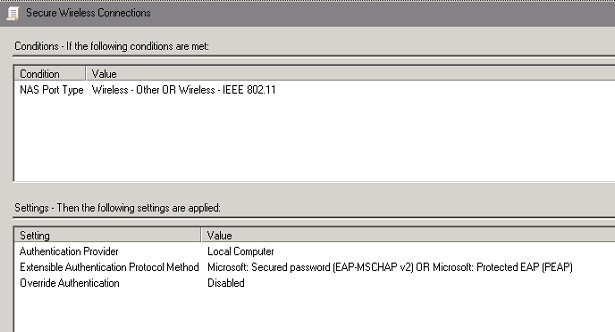
Policy Name: I picked “Secure Wireless Connections” and Enabled the policy
Conditions: NAS Port Type of Wireless-Other OR Wireless-IEEE802.11
Settings: I left these as the defaults as I wanted the Network Policy to dictate the authentication methods
Network Policies
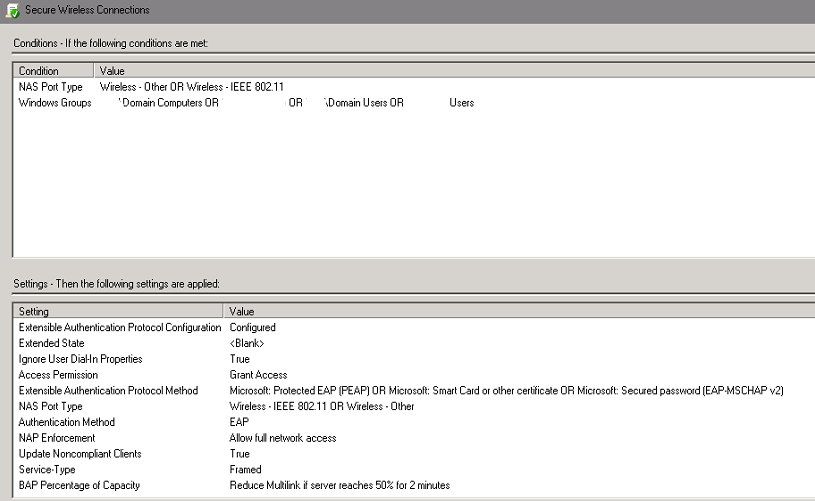
Policy Name: I once again picked “Secure Wireless Connections” and enabled the policy
Conditions: NAS Port Type of Wireless-Other OR Wireless-IEEE802.11 / Windows Groups of domain\domain computers and domain\domain users
Since I don’t feel like typing it all out, look at the picture.
Just point your wireless device(s) to your NPS/RADIUS server IP with the default port and away you go.
Now to get it with certificate-based security it was a bit more work:
I am assuming that you’re using an on-premise Certificate Authority and that it’s already up and running. In my case we have a 2008R2 CA already published in Active Directory. If it’s not published in AD, you can always have a GPO that pushes the trusted root certificate authority to all domain members.
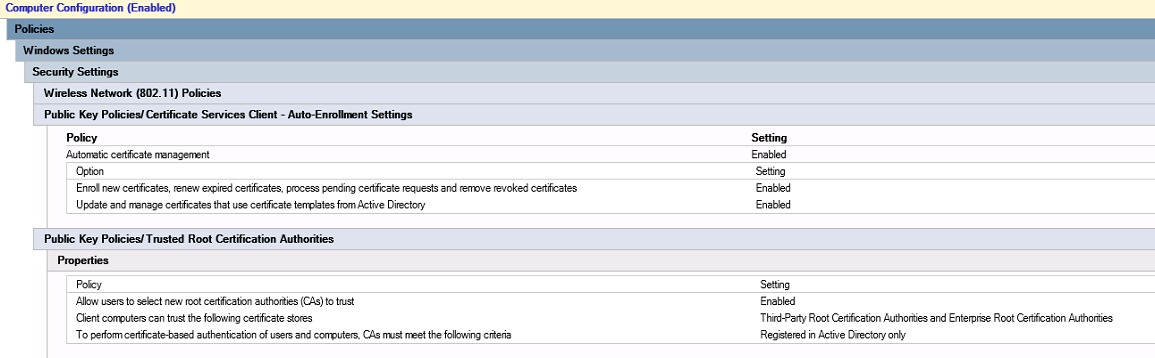
Anyway, I needed to set it so that every domain joined computer would enroll with a computer certificate against this CA, so I created a GPO called Wireless Settings (I don’t really like adding things to the default domain policy, so I end up creating new).
Under Computer Configuration / Policies / Windows Settings / Security Settings / Public Key Policies / Certificate Services Client – Auto-Enrollment Settings
From this I verified that computers had the appropriate certificates installed by looking at my MMC:
start, run, MMC
Add Certificates (Computer account) for the local machine
Verify there’s a certificate issued to your computername.yourdomainname.tld from the Certificate Authority with hooks into AD

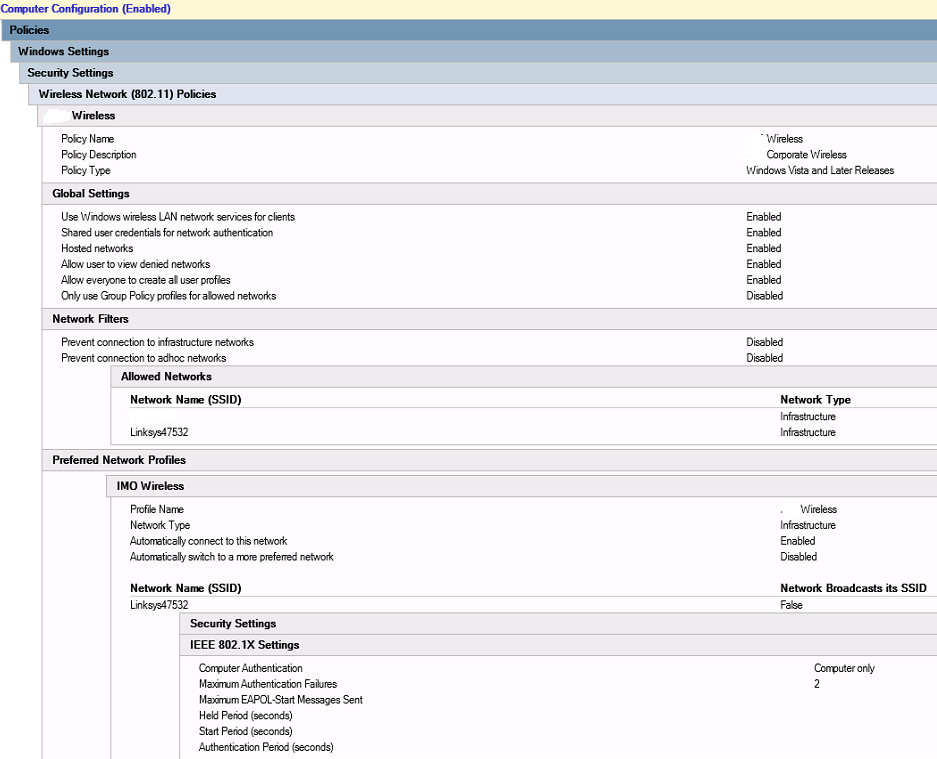
Now I finished up my Wireless Settings GPO with some Wireless Network (802.11) Policies. See the picture. Lazy.
The Profile Name will be the one displayed when people search for available wireless networks and, to the end-user, they will be connecting to this access point. You can actually publish multiple SSID’s under this name (I only have the “Linksys47532” name available currently).
You’d have to run
netsh, wlan, show interfaces
with an administrative command window to actually see the network being connected to.
When I get around to publishing a computer certificate that can be imported on an iPhone, I’ll update this post.