So I was trying to add Skype For Business PSTN to my O365 account:
Billing > Purchase Services
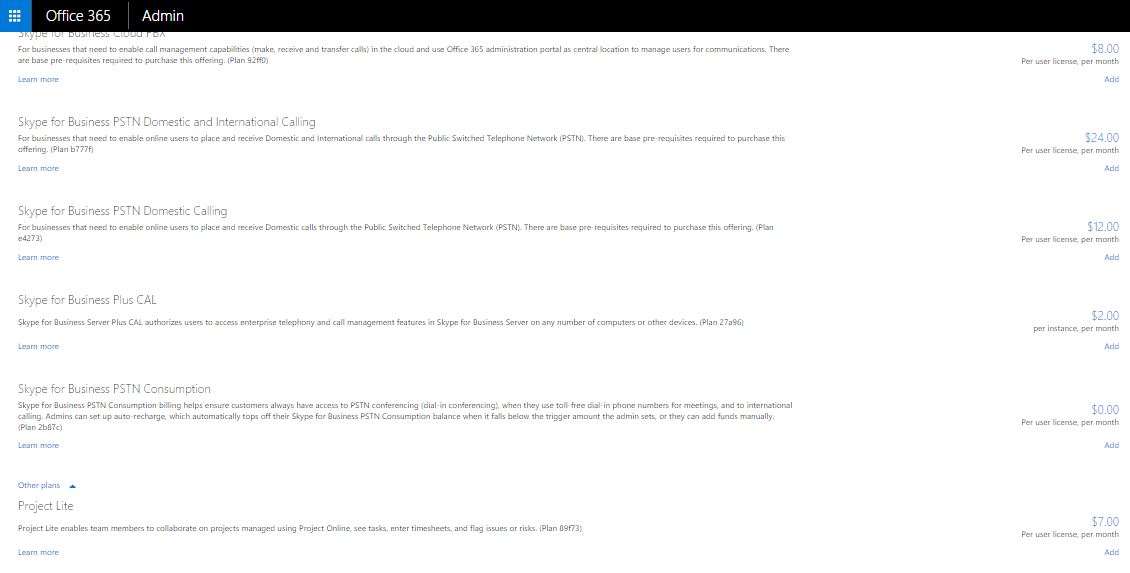
I couldn’t find the Skype for Business PSTN add-on.

Then I did some searching and found a link that allowed me to see all of the available subscriptions:
https://portal.office.com/commerce/catalog.aspx?empty=1
I was having extremely slow response time to input in the google search bar (aka omnibox). I’d close out of Chrome and re-enter, same issue. Every new tab (ctrl + t) I’d start typing a URL or search term and it would take up to 12 seconds for the text to start showing up. And with my misspellings… yeah it was frustrating.
Closed and re-opened Chrome. Same problem.
I disabled all of the extensions. Same problem.
I cleared all of the cache (ctrl shift del). Same problem.
Rebooted the machine. The problem went away for about 2-3 hours and then came right back.
Installed 64bit instead of 32bit. Same problem.
Redid all steps above after upgrading to 64bit. Same problem.
http://www.robschmuecker.com/google-chrome-address-bar-omnibox-getting-slow/
This site had me check for compatibility mode. I wasn’t running in compat mode as this was native supported.
But the delete of cache caught my eye – why does chrome store cached omnibox crud in the default user’s directory?
C:\Users\%Username%\appdata\local\google\chrome\User Data\Default\Cache
Delete everything in there. Restart Chrome.
I had to run taskkill /f /im chrome.exe prior to deleting all of the cache.
I went through and made sure that the room was set to not allow conflicts. Unfortunately it was still accepting conflict meetings as “tentative” instead of outright saying “no”. This was conflicting with our room booking evoko units (exterior to the room) and showing the second meeting – the tentative in Exchange/Outlook – as the only meeting. Bad.
So, open up your powershell and connect to the O365-land (previous post).
List All Rooms (you’ll need the email address)
Get-Mailbox | Where-Object {$_.RecipientTypeDetails -eq "RoomMailbox"} | Format-Table DisplayName,Identity,PrimarySmtpAddress
List All Options On That Room
get-calendarprocessing roomname@domainname.tld | fl
Verify that the AllowConflicts is set to false. Verify that the forwardrequeststodelegates is also false. Verify that the AllRequestOutOfPolicy is set to false.
Change these settings (if the above is not false)
Set-CalendarProcessing roomname@domainname.tld -AllowConflicts $false
Set-CalendarProcessing roomname@domainname.tld -ForwardRequestsToDelegates $false
Set-CalendarProcessing roomname@domainname.tld -AllRequestOutOfPolicy $false
I needed to change permissions on who could access the CEO’s calendar as his personal assistant was going on a month-long vacation and the backup needed the same permissions.
Connect to your Office365 environment using Powershell
Open Powershell as an administrator
$LiveCred = Get-Credential
$Session = New-PSSession -ConfigurationName Microsoft.Exchange -ConnectionUri https://ps.outlook.com/powershell/ -Credential $LiveCred -Authentication Basic -AllowRedirection
Import-PSSession $Session
Login with an O365 admin account
List access on a specific account
Get-MailboxFolderPermission -Identity user1@domain.com:\calendar
Add access to a specific user
Add-MailboxFolderPermission -Identity user1@domain.com:\calendar -user user2@domain.com -AccessRights Editor
Remove access to a specific user
Remove-MailboxFolderPermission -Identity user1@domain.com:\calendar -user user2@domain.com
Available Roles
Owner
PublishingEditor
Editor
PublishingAuthor
Author
NonEditingAuthor
Reviewer
Contributor
AvailabilityOnly
LimitedDetails
Ramblings Of An IT Person