Microsoft Dynamics GP 10 Mem_Bad_Pointer

A company is using Microsoft Dynamics GP 10 (Great Plains 10) for all of their financial recordings. They have a total of two people who input, print, and export data using MS Dynamics. It’s running SP3 FYI.

Each reports.dic file is running locally on the machine with a backup copy(ies) on a file server. Unfortunately after working well for almost a year, the report on one of the systems started to spew out errors. Researching the errors did not yield many results, so we went ahead and replaced the reports.dic file on the local machine. All errors then stopped.

Two weeks later BOTH machines are now having errors posting, running reports, etc. Looks like another corrupt reports.dic file. The error was:
Mem_Bad_Pointer
And then the program would close. Wonderful, right?

We tried to replace the file again, but the errors continued. So then we tried to import the existing file into a new reports.dic and use that. Yay!

Close out of Microsoft Dynamics GP 10
Navigate to your reports file (Default is c:\program files\microsoft dynamics\gp\reports.dic)
Rename the reports.dic file to reportsold.dic
Open Microsoft Dynamics GP 10 and log in as usual
Click on the User Preferences
Then Click on Tools > Customize > Report Writer
After the Report Writer loads, click on the Reports Button
Then Click on Import from file.

Now it gets a little tricky. You’ll have to select each and every field you want to import to the existing file (which is now the new reports.dic – a generic file created when you open GP for the first time). Highlight each field and then click the import button in the middle. When finished, click the Import button on the right hand side.

You should see all of your fields slowly (or quickly) go away. That’s a good sign – it means that all of those fields are now imported into the new reports.dic file.

We ended up keeping the reportsold.dic file just as a reference.
Helpful HTML

Meta refresh to another page or document.
Meta Refresh (meta-refresh) is used to reload a page as another. Basically, if someone navigates to http://it.thelibrarie.com they will be automatically forwarded to http://it.thelibrarie.com/weblog.
In the of your page insert the following:
<meta http-equiv="refresh" content="0;url=http://url">
The content=0 part is the amount of time before refreshing, given in seconds. So 0 means zero seconds (instantly) and 5 would be five seconds of waiting.

Setting up a link to mail someone, even with a subject already typed out.
Create a link basically like the following:
<a href="mailto:email_address@domain.tld?subject=some_subject">

Open link in new window or new tab.
I’d like to think that all sites have any external loading websites load in their own window. I don’t want to click on a link and have the original page disappear (especially my computer help site :D). I know anyone can middle click (wheel click) on a link and it will automatically open in a new tab/window, but sometimes people are just lazy.
Welcome “Target=” links:
<a href="http://www.google.com" target=_blank>Google</a>
Shows up as:
Google – Go ahead and click on that bad boy to see for yourselves.
Target can equal _blank, _self, or _top. _blank is for new tab/window, _self is for itself, and _top is for if/when you use frames and want it to show up in a specific spot framed off. You can also make up your own variables as long as they’re declared in the framing html code.

Writing HTML Code In Blogs.
This probably affects me more than you, but I’ll put it here anyway
&lt;
Shows this: <
&gt;
Shows this: >
If you need any more of the special characters, you can always use This Site.

Playing with text.
Sometimes you just need an extra space or two between words. Other times you need the text to look the exact same as what you wrote. Welcome PRE and NBSP!
This is what NORMAL text looks like

This is what PRE text looks like

This is what NORMAL text looks like with several spaces

   This  is      what  PRE    text  looks  like          with several  spaces

Notice that the text will not wrap – all formatting is ignored with the PRE text.

This is what amp;nbsp looks like:
 Test
Two of them:
  Test
Three:
   Test
Ten:
          Test

Hope you find all this as interesting as I do. I may or may not keep adding on as I find myself using the same commands over and over.

New Theme

For the first time in at least 2 years I’m changing up the theme of the site.  And, for the first time since I started it.thelibrarie.com I changed the home page index.html to meta refresh to /weblog.  I never got around to manually updating the index page anyway, so it’s not really a big loss.

I must, however, update the utilities/downloads section to allow for easier access. I’ve been slacking as of late, but if I have time in the next few days I’ll be sure to get that ball rolling as well.

So anyway, the old theme was called Phoenixblue, the new theme is called Hemmed. I was also looking at ShadedGrey, but I didn’t like how the images got chopped off and I am not the best with DIVs. Kramer on the other hand…

Setting Up Virtual Hosts In Apache

Setting Up Virtual Hosts In Apache, and also Editing The Host File On Windows.

For this test, I have an Ubuntu 9.04 Server (LAMP) running Apache2. I also have the testing machine of a Windows 7 Enterprise workstation using Firefox browser, notepad/notepad2 for editing, and putty for ssh connections.

Setting up a virtual host in Apache used to be a long and arduous task – now they’ve made it almost foolproof. Before I start on the how-to, let’s look into why-we-should:
There are a limited number of IPv4 IP addresses
Websites generally do not use up all of the resources of a high-powered server
It costs quite a bit more money to run a single website on a single server (if you’re hosting yourself there’s the power, internet, maintenance, and other problems to add up)

Obviously there is more than one way to go about this, but this is how I did it on my setup:

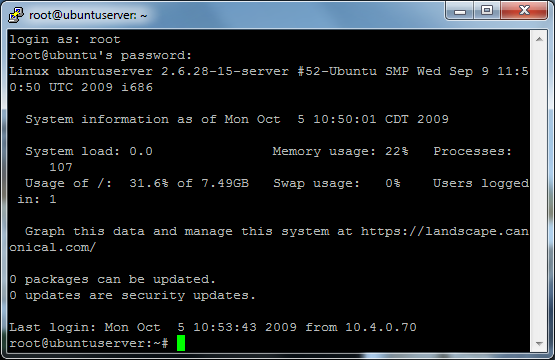
Log into your Linux server using putty or another SSH application
1_login
I’m using the root user – if you log as another user you may have to run “sudo command_here” commands. So if one of your commands does not work, try with the prefix sudo.
cd /etc/apache2/sites-available
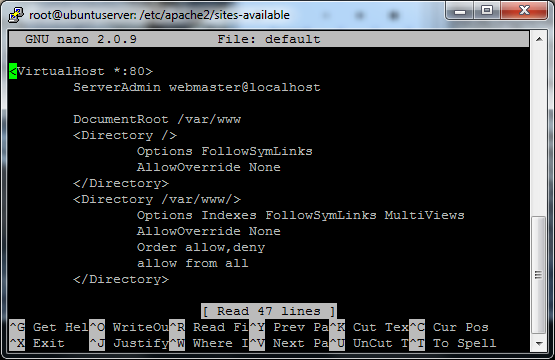
nano default
2_apache_sites_avail

Page down to the end of this file. Everything that is in there should have been installed by default – and we only want to add to the sites and not edit.
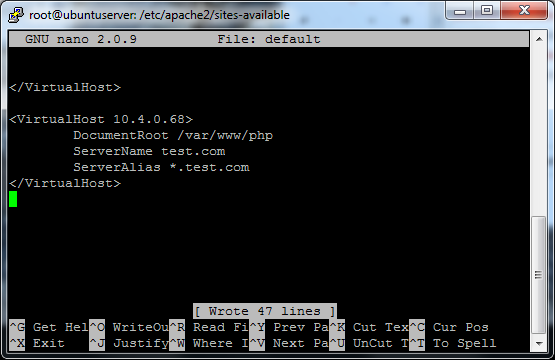
Add the following:

NameVirtualHost name_of_your_host

<VirtualHost IP_of_your_webserver>
    DocumentRoot /path/to/your/files
    ServerName domain.tld
    ServerAlias *.domain.tld
</VirtualHost>

3_apache_sa_edited

Control X and select save your file. After you save, you’ll have to reset/reload apache so it can re-read the configuration files:
apache2ctl restart

Now to test on your Windows machine we need to edit your hosts file and add the hostname and IP address of your test server.

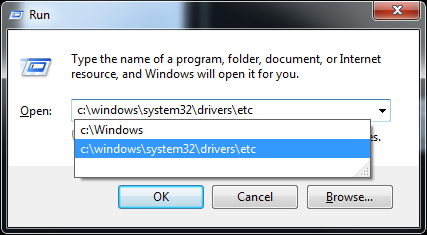
Start > run (or Windows Key + R)
c:\windows\system32\drivers\etc
4_host_file_location
Edit the hosts file using your favorite text editor (notepad or notepad2 for me)
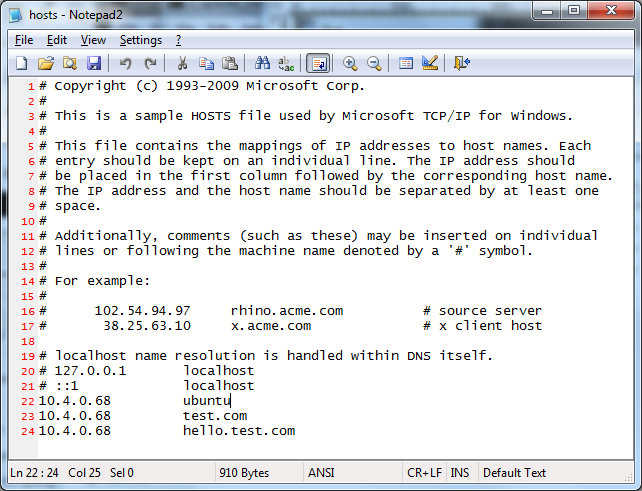
At the bottom of the file you will need to make the changes:
IP_address DNS_Name

Notice that you can have as many DNS names for each IP address as you want.
5_host_file_edited

Now, open up your favorite browser (chrome or firefox) and navigate to the name you setup. In my case, I go to http://test.com. Since it loaded my test site which was different from my generic http://10.4.0.68 site, I know it’s working.

Desktop Background

I had just finished installing Windows 7 Enterprise 64bit and Ubuntu Desktop 9.04 64bit on my laptop as a dual boot setup.

I am not really going to write about setting it up to dual boot, as it was entirely too easy. I installed Windows 7 first, but I partitioned the 320GB drive into a 40GB empty and a 280GB empty partitioning scheme. Installed 7 on the 280GB spot and then booted off the Ubuntu CD. Installed that on the 40GB. Grub was already setup for me.

But I had the issue of not being able to find a good high-quality desktop background image for my Ubuntu side of things. I didn’t really want to use one of the generic “Linux is life” ones. So I searched for a few minutes and ended up finding a neat site:

http://interfacelift.com/wallpaper_beta/. Hopefully their site stays up for quite some time. Otherwise I may have to take one of mine and create a “wallpaper.thelibrarie.com” or something.