All posts by bsdman

Currently working as an IT Manager. Worked for an OIT company as a Network Engineer in 2011. Worked for a Medical IT company as the Network Administrator 2009-2011. Worked as the Senior Systems Administrator at a computer reseller from 2005-2009. Worked as a Computer Consultant for several small companies from 2007-2009. Worked as a Computer Technician at a computer reseller from 2002-2004.

You must enter a positive duration

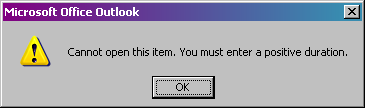
I had a user who complained that he could not delete an item from his calendar on outlook 2007. He was actually trying to open the item on the calendar, but it provided the same results:

outlook_positive_duration

Cannot open this item. You must enter a positive duration.

What the hell does that mean? Basically the user somehow created a task that repeated from today through to the end of the world (infinity). Somehow it wouldn’t move, delete, open, or rename.

Being the network administrator that I am, I took ownership of his mailbox – well technically “Publishing Editor”, but we’ll assume ownership.

OK, I’m going to assume that you have already given yourself permissions to read the user’s mail/calendar by checking the Full Mailbox Access allow box in Active Directory AND have added the mailbox account to your outlook.

Click on Calendars
Check the box next to the Calendar in Mailbox – USERNAMEHERE
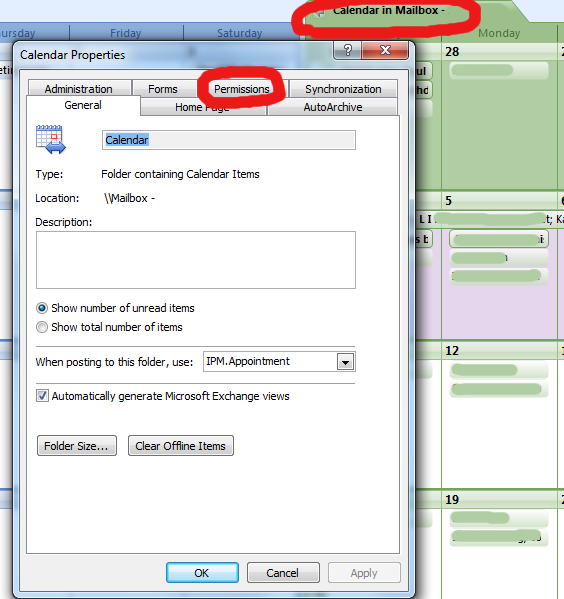
Right-click on the Calendar in Mailbox – USERNAMEHERE that shows up on the main screen and select properties
calendar_properties
Now click on the Permissions tab
Add your username to the list
Give your username Publishing Editor privileges

Now you can left-click once on the task and hit the magic Delete button. You may or may not still get an error about not being able to save the task, but it will surely go away.

Microsoft Dynamics GP 10 Mem_Bad_Pointer

A company is using Microsoft Dynamics GP 10 (Great Plains 10) for all of their financial recordings. They have a total of two people who input, print, and export data using MS Dynamics. It’s running SP3 FYI.

Each reports.dic file is running locally on the machine with a backup copy(ies) on a file server. Unfortunately after working well for almost a year, the report on one of the systems started to spew out errors. Researching the errors did not yield many results, so we went ahead and replaced the reports.dic file on the local machine. All errors then stopped.

Two weeks later BOTH machines are now having errors posting, running reports, etc. Looks like another corrupt reports.dic file. The error was:
Mem_Bad_Pointer
And then the program would close. Wonderful, right?

We tried to replace the file again, but the errors continued. So then we tried to import the existing file into a new reports.dic and use that. Yay!

Close out of Microsoft Dynamics GP 10
Navigate to your reports file (Default is c:\program files\microsoft dynamics\gp\reports.dic)
Rename the reports.dic file to reportsold.dic
Open Microsoft Dynamics GP 10 and log in as usual
Click on the User Preferences
Then Click on Tools > Customize > Report Writer
After the Report Writer loads, click on the Reports Button
Then Click on Import from file.

Now it gets a little tricky. You’ll have to select each and every field you want to import to the existing file (which is now the new reports.dic – a generic file created when you open GP for the first time). Highlight each field and then click the import button in the middle. When finished, click the Import button on the right hand side.

You should see all of your fields slowly (or quickly) go away. That’s a good sign – it means that all of those fields are now imported into the new reports.dic file.

We ended up keeping the reportsold.dic file just as a reference.

Helpful HTML

Meta refresh to another page or document.
Meta Refresh (meta-refresh) is used to reload a page as another. Basically, if someone navigates to http://it.thelibrarie.com they will be automatically forwarded to http://it.thelibrarie.com/weblog.
In the of your page insert the following:
<meta http-equiv="refresh" content="0;url=http://url">
The content=0 part is the amount of time before refreshing, given in seconds. So 0 means zero seconds (instantly) and 5 would be five seconds of waiting.

Setting up a link to mail someone, even with a subject already typed out.
Create a link basically like the following:
<a href="mailto:email_address@domain.tld?subject=some_subject">

Open link in new window or new tab.
I’d like to think that all sites have any external loading websites load in their own window. I don’t want to click on a link and have the original page disappear (especially my computer help site :D). I know anyone can middle click (wheel click) on a link and it will automatically open in a new tab/window, but sometimes people are just lazy.
Welcome “Target=” links:
<a href="http://www.google.com" target=_blank>Google</a>
Shows up as:
Google – Go ahead and click on that bad boy to see for yourselves.
Target can equal _blank, _self, or _top. _blank is for new tab/window, _self is for itself, and _top is for if/when you use frames and want it to show up in a specific spot framed off. You can also make up your own variables as long as they’re declared in the framing html code.

Writing HTML Code In Blogs.
This probably affects me more than you, but I’ll put it here anyway
&lt;
Shows this: <
&gt;
Shows this: >
If you need any more of the special characters, you can always use This Site.

Playing with text.
Sometimes you just need an extra space or two between words. Other times you need the text to look the exact same as what you wrote. Welcome PRE and NBSP!
This is what NORMAL text looks like

This is what PRE text looks like

This is what NORMAL text looks like with several spaces

   This  is      what  PRE    text  looks  like          with several  spaces

Notice that the text will not wrap – all formatting is ignored with the PRE text.

This is what amp;nbsp looks like:
 Test
Two of them:
  Test
Three:
   Test
Ten:
          Test

Hope you find all this as interesting as I do. I may or may not keep adding on as I find myself using the same commands over and over.

Setting Up Virtual Hosts In Apache

Setting Up Virtual Hosts In Apache, and also Editing The Host File On Windows.

For this test, I have an Ubuntu 9.04 Server (LAMP) running Apache2. I also have the testing machine of a Windows 7 Enterprise workstation using Firefox browser, notepad/notepad2 for editing, and putty for ssh connections.

Setting up a virtual host in Apache used to be a long and arduous task – now they’ve made it almost foolproof. Before I start on the how-to, let’s look into why-we-should:
There are a limited number of IPv4 IP addresses
Websites generally do not use up all of the resources of a high-powered server
It costs quite a bit more money to run a single website on a single server (if you’re hosting yourself there’s the power, internet, maintenance, and other problems to add up)

Obviously there is more than one way to go about this, but this is how I did it on my setup:

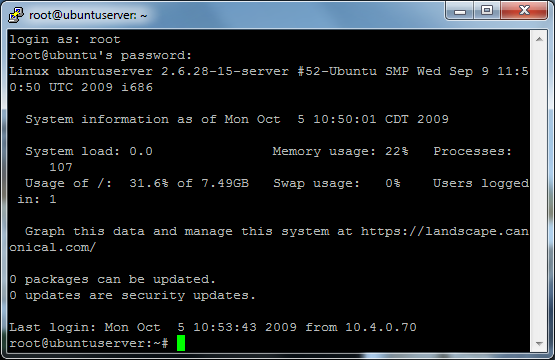
Log into your Linux server using putty or another SSH application
1_login
I’m using the root user – if you log as another user you may have to run “sudo command_here” commands. So if one of your commands does not work, try with the prefix sudo.
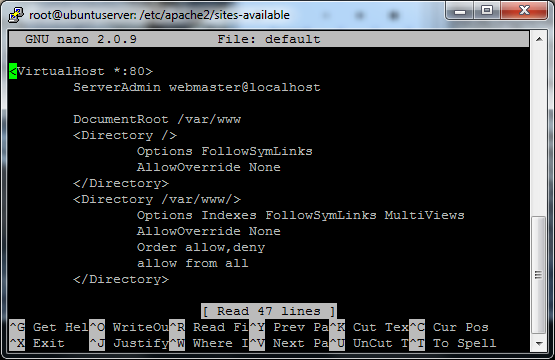
cd /etc/apache2/sites-available
nano default
2_apache_sites_avail

Page down to the end of this file. Everything that is in there should have been installed by default – and we only want to add to the sites and not edit.
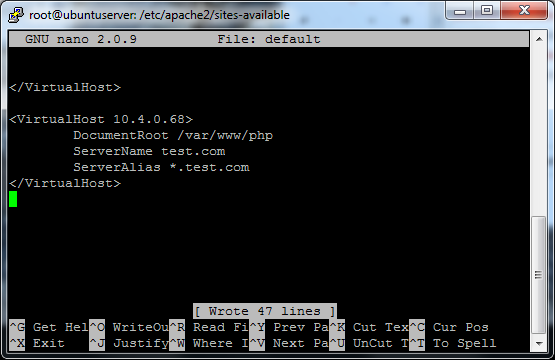
Add the following:

NameVirtualHost name_of_your_host

<VirtualHost IP_of_your_webserver>
    DocumentRoot /path/to/your/files
    ServerName domain.tld
    ServerAlias *.domain.tld
</VirtualHost>

3_apache_sa_edited

Control X and select save your file. After you save, you’ll have to reset/reload apache so it can re-read the configuration files:
apache2ctl restart

Now to test on your Windows machine we need to edit your hosts file and add the hostname and IP address of your test server.

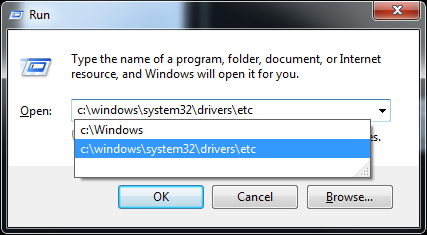
Start > run (or Windows Key + R)
c:\windows\system32\drivers\etc
4_host_file_location
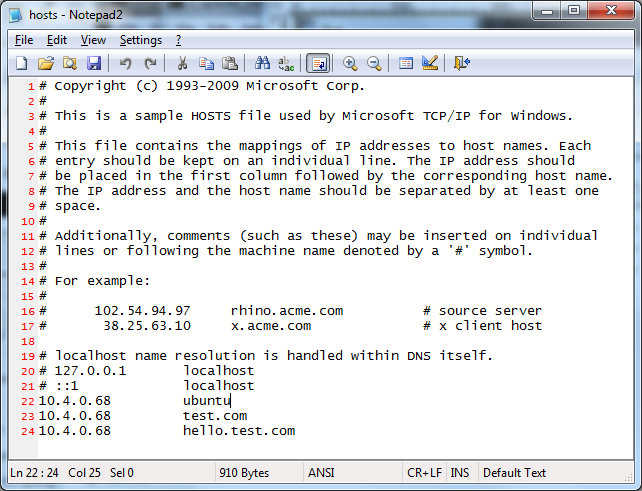
Edit the hosts file using your favorite text editor (notepad or notepad2 for me)
At the bottom of the file you will need to make the changes:
IP_address DNS_Name

Notice that you can have as many DNS names for each IP address as you want.
5_host_file_edited

Now, open up your favorite browser (chrome or firefox) and navigate to the name you setup. In my case, I go to http://test.com. Since it loaded my test site which was different from my generic http://10.4.0.68 site, I know it’s working.

Desktop Background

I had just finished installing Windows 7 Enterprise 64bit and Ubuntu Desktop 9.04 64bit on my laptop as a dual boot setup.

I am not really going to write about setting it up to dual boot, as it was entirely too easy. I installed Windows 7 first, but I partitioned the 320GB drive into a 40GB empty and a 280GB empty partitioning scheme. Installed 7 on the 280GB spot and then booted off the Ubuntu CD. Installed that on the 40GB. Grub was already setup for me.

But I had the issue of not being able to find a good high-quality desktop background image for my Ubuntu side of things. I didn’t really want to use one of the generic “Linux is life” ones. So I searched for a few minutes and ended up finding a neat site:

http://interfacelift.com/wallpaper_beta/. Hopefully their site stays up for quite some time. Otherwise I may have to take one of mine and create a “wallpaper.thelibrarie.com” or something.

Windows 7

If anyone out there knows me, they know that I’m not really the biggest of Windows fans. Heck, I’ve probably been anti-Microsoft for most of my life thus far. I grew up on Apples (Macintosh) and then slowly attempted to gain knowledge of Linux systems (I still have a FreeBSD 4.1 CD somewhere). I didn’t actually own a Windows system until 2001 – at which time I was running a 1.4GHz AMD Athlon with 512MB RAM a 20GB HD and Windows 2000 Professional.

Then I moved onto building a crap-load (technical term here) more systems and slowly making my way up the chain. Heck, here’s a timeline if I can remember them all:

Mac OS 6.1 (Finder 4.5 I believe) was running on my first computer a MacSE (Retired)
8.9" BW Screen, 8MHz, 1MB RAM, 20MB HD, 720KB Floppy

Mac OS 7.5 was my first color computer on a PowerMac 7100/80AV (Retired)
14" Samsung CRT, 80MHz PowerPC, 16MB RAM upgraded to 48MB, 700MB HD upgraded to 2.1GB, 2X CD-ROM upgraded to 12X CD-ROM, 1.4MB Floppy, 10Base-T

Mac OS 8.1 was our first internet-enabled computer on a PowerMac G3 233 (Retired)
15" ViewSonic CRT, 233MHz G3, 128MB RAM upgraded to 384MB, 4GB HD upgraded to 20GB, 16X CD-ROM upgraded to 4x2x24 CD-RW, 1.4MB Floppy, 100MB Zip, 100Base-T

Mac OS 9.1/OSX 10.1 was my college computer on a G4 450 Gigabit Ethernet (Retired)
15" no brand LCD, Dual 450MHz G4, 256MB RAM upgraded to 1.25GB, 20GB HD upgraded to 3X 80GB, 8X DVD-ROM upgraded to 12X CD-RW/DVD Combo, 1000Base-T

Mac OS 9.1/OSX 10.1 on my first portable system – an iBook G3 (white one) (Retired)
13.1" LCD, 800MHz, 256MB RAM upgraded to 768MB, 20GB HD, 24X CD-ROM, 100Base-T

Redhat 6? on my first non-Mac system repurposed Sony unknown Model (Sold)
14" Samsung CRT on KVM, 233MHz Intel Pentium II, 32MB RAM upgraded to 64MB, 2.1GB HD, 100Base-T

FreeBSD 4.1 on my first non-GUI computer home built system (Retired)
No monitor, 350MHz AMD K6-2, 128MB RAM, 20GB HD, 12X CD-ROM, Dual 100Base-T

Windows 2000 Professional on a home built system (Sold)
15" no brand LCD via KVM, 1.4GHz AMD Athlon, 512MB RAM, 20GB HD, 24X CD-RW, 1.44 Floppy, 100Base-T

Mandrake 8 on a home built system (Broken/Trashed)
No monitor, 450MHz AMD K6-2, 512MB RAM, 40GB HD, 100Base-T

Windows XP on a home built system (LAN Source Server)
17" ViewSonic LCD, 1.6GHz AMD Athlon, 512MB RAM, 40GB HD, 24XCD-ROM, 100Base-T

Windows XP on a Compaq V5000 CTO laptop (Sold to Family)
15" LCD, 1.8GHz AMD Athlon, 256MB RAM upgraded to 2048MB, 20GB HD upgraded to 120GB, 12X DVD-ROM, 100Base-T

Windows XP on a home built system (Repurposed – see next)
17" Viewsonic LCD on KVM, 2.6GHz Intel P4, 512MB RAM upgraded to 2048MB, 120GB HD upgraded to 2x 120GB and 400GB, 12X DVD-RW, 1000Base-T

Windows Server 2008 on a home built system (Primary Domain Controller)
No Monitor, 2.6GHz Intel P4, 2048MB RAM, 2x 500GB and 2x 750GB, 12X DVD-RW, 1000Base-T

Windows Vista Ultimate 64bit on a home built system (Gaming Rig)
19" Samsung LCD, 2.5GHz Intel Core2Duo, 4096MB RAM, 500GB HD, 24X CD-RW, 1000Base-T

Windows XP on a home built system (Media Center)
42" Toshiba TV 1080P, 2.5GHz Intel Core2Duo, 1024MB RAM, 1TB HD, 24X CD-ROM, 1000Base-T

Windows 7 Enterprise 64bit on a home built system (Work Computer)
21.5" Acer LCD and 19" Dell LCD, 2.5GHz Intel Core2Duo, 8192MB RAM, 500GB HD, 24X DVD-RW, 1000Base-T

Windows 7 Enterprise 64bit and Ubuntu 9.04 64bit dual boot on an HP NX6245 (Primary Laptop)
14.1" LCD, 2.2GHz AMD X2, 3072MB RAM, 120GB HD upgraded to 320GB, 16X DVD-RW, 1000Base-T, 802.11g

Windows XP on an Asus eeepc (Family Laptop)
10.1" LCD, 1.6GHz Intel Atom, 2048MB RAM, 160GB HD, 100Base-T, 802.11g

I know there’s at least 2 more that I’m missing, but one I sold and I am pretty sure that the other one broke and I chucked it away.

Oh, now that I read my title I see the point I was trying to make: I’ve had a lot of computers and a lot of experience with computer operating systems. That being said, here is how I would rate them:

Gaming:
1.) Windows XP Pro
2.) Windows Vista/7
3.) Windows 2000 Pro
4.) MacOS 8-9
5.) MacOS X
6.) Any Linux

Business (No issues connecting to AD or a domain):
1.) Windows XP Pro
2.) Windows 2000 Pro
3.) Windows Vista/7
4.) Linux
5.) MacOS X

Entertainment/Movies:
1.) MacOS X
2.) Windows Vista/7
3.) Mac OS 8-9
4.) Windows XP Pro
5.) Linux
6.) Windows 2000 Pro

Battery Usage/Portability:
1.) Windows Vista/7
2.) Linux
3.) MacOS X
4.) Windows XP Pro
5.) MacOS 8-9
6.) Windows 2000 Pro

Speed (Startup/Apps loading/Internet usage):
1.) Windows 7
2.) Windows 2000 Pro
3.) Linux
4.) Windows XP Pro
5.) MacOS 8-9
6.) MacOS X

Some of these results are skewed as I haven’t been able to play with the latest and greatest. The last Mac I used was a dual 1.25GHz G4 with 1.5GB RAM. Nice machine, but no comparison for gaming to a Windows machine. Overall it depends on how you want to use your computer.

Server:
Linux

Gaming Station:
Windows

Graphic Design/Video Editing:
Mac

Business Computer:
Windows

***EDIT***
Windows 7 was installed on my work system September 10th 2009 and thus far has exceeded all of my expectations. I have yet to have the system crash and almost all of my applications continue to function correctly under Windows 7 64bit. I’ve had to reboot the system 4 times total – and three of them were after installing software that required a reboot. The fourth was rebooting for an extended weekend (I can just hear a greenie now…) Otherwise, with 8GB TAM this thing is flying.
Menu Popup Delay Windows XP, Vista, 7

If you’re anything like me, you hate to wait for anything – especially your computer. The computer should be waiting for me, not the other way around!

The menu delays in Windows have always aggravated me. I want the menu to pop up almost as soon as the cursor is over it. Now I must admit that the delay is VERY HELPFUL to older and younger peoples. If I tried to teach my grandmother using my preferences, she’d wiggle the cursor all over the screen and never be able to select what she wanted. The same goes for my 6 year old niece – the young and old don’t have the fine control over motor functions at the same level as the middle aged.

You may argue with me saying “I’m not middle-aged and I can run circles around you with my mouse!” That’s all besides the point. Point is, here’s how to do it:

Reminder: Any actions you take in the registry could adversely affect your system. I am not responsible for you breaking your system. The following directions worked for me, and if you follow them correctly they should also work for you.

Open up the registry editor
Start > Run > regedit
Navigate to HKCU\Control Panel\Desktop
Computer\HKEY_CURRENT_USER\Control Panel\Desktop
Find the MenuShowDelay key
Set the Value data to be any number you want. The numbers are measured in MS (milliseconds) and the default is 400. I set mine to 1.