Outlook Cached, No New Emails

Customer was upgrading from Exchange 2003 to Exchange 2007. Installed Windows Server 2003 Enterprise x64 on a new server, ran all the updates, installed Exchange. Started migrating users over to the new server and no issues. Or so we thought.

A couple users had problems retrieving new emails in Outlook. Their iPhone/Blackberry showed the newest emails. Outlook web access showed the newest emails. Even Exchange 2007 showed DELIVERED for the new emails. The only solution to fix this problem at first:

Remove Cached Mode for Exchange
Remove the offending user’s shared mailbox
Magically Mail would start flowing after either of these two steps were done. However, since the problematic users were remotely located, cached mode must be used and the users required the shared mailbox.

The only users complaining had:

Cached Outlook Profiles
Other users mailboxes shared in their profile
Wireless connection to the network

First check (after making sure the email actually went through) was to look in ADSI Edit to verify that the users had proper permissions (you can also check on the client).

Start, Run
adsiedit.msc
Navigate to your Domain, and then your Users group.
Right-click on the user and select Properties
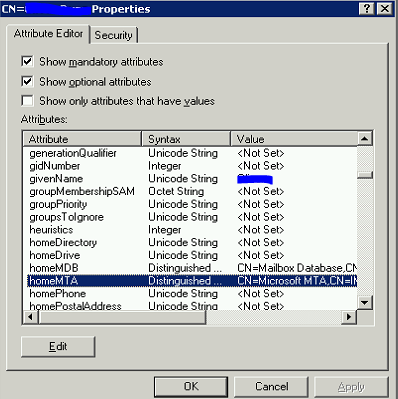
Make sure that homeMDB and homeMTA have your new servername in there
Second was to fix the OST file. We scanpst.exe (program files/microsoft office/office12/scanpst.exe) and repaired any errors.

Third was to start a new profile – we even tried on a test machine to be sure that it wasn’t a local issue.

Nothing worked. Final step (which worked) was to go to the following:

Open Outlook
Navigate to Tools – Account Settings
Click on your Exchange account and then click Change…
Click the More Settings… button
Click on the Advanced tab
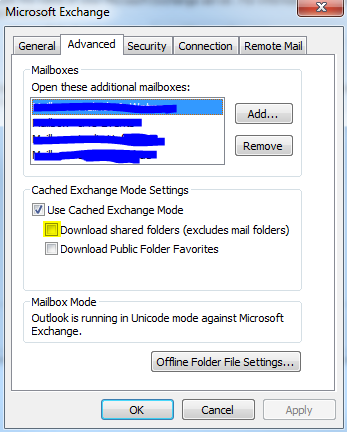
Uncheck Download shared folders (excludes mail folders)
Restart Outlook
Windows 2k RDP Sessions

And here I thought I would be done with Windows 2000 Advanced Server. Oh well.
Basically you’re allowed 2 RDP sessions and 1 console (local) session on win2k server. Server 2003/2008 allow you to use all 3 sessions remotely, which is a definite plus. Easy way to get to the console session of 2003/2008:

Start, Run
mstsc /admin
IP or Name of your server

Easy way on Windows 2000. Uh, THERE IS NO EASY WAY.
Our situation:
2 Windows 2000 Advanced Servers
Located 120 minutes away
Not on the domain (workgroup)
One of the servers had the maximum number of connections
The other server we could login no problem

As long as you have rights (privs) to the admin share (c$) of the computer, you can very easily connect:
1.) I logged into the win2k server that still worked
2.) Pulled up the command prompt
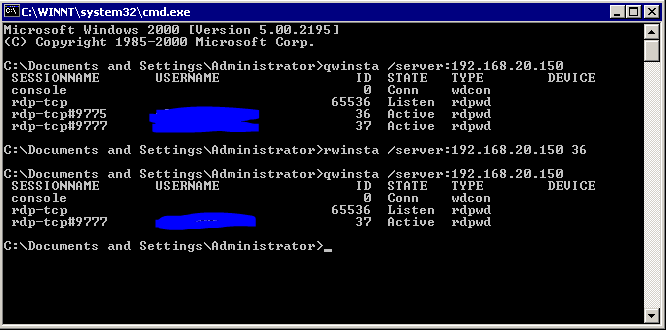
3.) Typed qwinsta /server:192.168.20.150
4.) Typed rwinsta /server:192.168.20.150 sessionid

Basically qwinsta will query for all the active/disconnected RDP sessions on the server. Rwinsta will remove the session id you pick. Check out the picture for more information.

Then just connect as usual.

******EDIT******
OK, so sometimes I’m a little slow on the uptake. I forgot how to manage remotely without being part of the domain. Authenticate as a user on that system and you can do it all remotely – ie if BOTH of those servers had max connections, what would I do?

net use /user:usernamehere \\ip_of_the_server\c$
This will prompt you to enter a password for the username you selected
Now you can run the same commands above.

ALSO, it looks like you can use:
query session /server:192.168.20.150
and
reset session 36 /server:192.168.20.150
as those are easier to remember on new systems.

Daemon Tools and Threatfire

Daemon Tools would not run. I was receiving the error:

This program requires at least Windows 2000 with SPTD 1.60 or higher.
Kernel debugger must be deactivated

Awesome. And it was after I had installed Threatfire and then rebooted.
I tried setting TF to delayed automatic service startup, but still no dice.

Here’s the work around:

Hold Ctrl and right-click on the Threatfire icon in the taskbar tray
Select Exit
Windows Key + R, and type in CMD and hit enter
net stop threatfire
Load Threatfire by opening the program

Supposedly a temporary work around, but it’s been almost 6 months. Apparently you can also delay the startup by using WinPatrol.

Prevent Direct Access To PHP

Not sure if this is the correct way of doing things (as I’m still “learning” PHP), but it worked for me.
Basically I wanted to include a php file, but not allow the user to be able to directly go to that same file.

Example: index.php calls upload.php. Blocking the end user from going straight to upload.php (or even viewing the contents) would have been a bad idea.
This is running on a debian server with LAMP.

nano index.php

$including = true;

nano upload.php

if (!$including) exit(“Direct access is not permitted.”);

That’s it. Now navigate to upload.php and you’ll see it doesn’t allow it to work. Navigate to index.php and you’ll see the call still works. Great? Probably not, but it still works. Hopefully it doesn’t introduce any other bugs – but it’s a purely testing system anyway. So hack away.

Useful DNS Stuff

DNS is great. Who wants to remember numbers when you can remember something easier?
http://it.thelibrarie.com or http://208.113.245.198? Well technically that’s a bad example as this site is running as an apache virtual host (the header file tells the server which site you’re actually look for). But you get the idea.

So, how many sites are actually on this same IP address? As of this writing: 71. Now that includes www.*.tld and *.tld, so it’s slightly inflated.
How do we know? I use a tool called YouGetSignal (http://www.yougetsignal.com/tools/web-sites-on-web-server/) to look it up. Pretty nice interface.

How about if you just want to see sub domains of a system? I found a decent way (although it doesn’t find all of them) to check:
Download DNSMap (http://code.google.com/p/dnsmap/downloads/list)
wget http://dnsmap.googlecode.com/files/dnsmap-0.30.tar.gz
tar zxvf dnsmap-0.30.tar.gz
cd dnsmap-0.30
make
cp ./dnsmap /usr/local/bin/dnsmap
dnsmap domain.tld -r /var/log/dnsmap_domain.tld_log.txt

localadmin@external:~/dnsmap-0.30$ dnsmap thelibrarie.com
dnsmap 0.30 – DNS Network Mapper by pagvac (gnucitizen.org)

[+] searching (sub)domains for thelibrarie.com using built-in wordlist
[+] using maximum random delay of 10 millisecond(s) between requests

ftp.thelibrarie.com
IP address #1: 208.113.246.229

it.thelibrarie.com
IP address #1: 208.113.245.198

kj.thelibrarie.com
IP address #1: 208.113.246.229

mail.thelibrarie.com
IP address #1: 208.97.132.24

media.thelibrarie.com
IP address #1: 208.113.228.62

news.thelibrarie.com
IP address #1: 208.113.232.193

webmail.thelibrarie.com
IP address #1: 208.97.187.139

www.thelibrarie.com
IP address #1: 208.113.246.229

[+] 11 (sub)domains and 11 IP address(es) found
[+] completion time: 164 second(s)

I cut out a couple even though you can easily see which ones. Just to make it slightly more difficult for bots…

Find All Workgroups and Domains On Your Network

Customer had complained he was seeing his domain (we’ll call it domain.tld just to be on the same page), several workgroups, and several other connections he wasn’t sure about.

So I fired up my trusty XP virtual machine (workgroup) to view all the workgroup computers in the Microsoft Windows Network (My Computer — My Network Places — View Workgroup Computers — Microsoft Windows Network). I could see “Domain.tld”, “Workgroup”, and “Workgroup1”. Now you should be able to open each of these up and list the systems that belong to the groups, but I wanted to know more information about each one.

Download NetResView. Run the program and after a short period of time it should display a bunch of information about each system. Works under XP Pro and 7 64bit.

Secure PHP Upload Directory

I was given the task to setup, configure, and manage an external facing apache web server.

So I turned to my trusty Ubuntu Server 9.10 x86 CD, installed it and then ran the updates. Yes, I put LAMP on there.

After all was said and done, I grabbed my trusty internal-only php uploader script. Unfortunately it’s not fully secure – I actually had someone attack my “honeypot” site successfully by exploiting this script and a lax apache install. What makes this script so bad for use on the outside is it’s need for chmod 777 privileges. Yuck.

A good way to stop people from finding bad things to run is to hide indexing from the site (directory listing). Another is to stop executables from running in that directory.

Open up the sites-enabled configuration of apache
nano /etc/apache2/sites-enabled/000-default

Under the first virtualhost area, edit for your directory:

<VirtualHost *:80>
ServerAdmin webmaster@localhost

DocumentRoot /var/www
<Directory />
Options FollowSymLinks
AllowOverride None
</Directory>
<Directory /var/www/>
Options FollowSymLinks MultiViews
AllowOverride None
Order allow,deny
allow from all
</Directory>

ScriptAlias /cgi-bin/ /usr/lib/cgi-bin/
<Directory “/usr/lib/cgi-bin”>
AllowOverride None
Options +ExecCGI -MultiViews +SymLinksIfOwnerMatch
Order allow,deny
Allow from all
</Directory>

<Directory /var/www/upload_files/>
AllowOverride None
Options IncludesNOEXEC
Options -Indexes
Options -ExecCGI
AddHandler cgi-script .php .php3 .php4 .phtml .pl .py .jsp .asp .htm .shtml .sh .cgi .gif .pdf .jpg .png .tif .tiff .wmv .mpg .mp3 .mp4 .avi .txt .html .exe .xml .*
</Directory>


Then restart apache
apache2ctl restart

Ramblings Of An IT Person