Calendar Permissions Office365 Powershell

I needed to change permissions on who could access the CEO’s calendar as his personal assistant was going on a month-long vacation and the backup needed the same permissions.

Connect to your Office365 environment using Powershell
Open Powershell as an administrator
$LiveCred = Get-Credential
$Session = New-PSSession -ConfigurationName Microsoft.Exchange -ConnectionUri https://ps.outlook.com/powershell/ -Credential $LiveCred -Authentication Basic -AllowRedirection
Import-PSSession $Session
Login with an O365 admin account

List access on a specific account
Get-MailboxFolderPermission -Identity user1@domain.com:\calendar

Add access to a specific user
Add-MailboxFolderPermission -Identity user1@domain.com:\calendar -user user2@domain.com -AccessRights Editor

Remove access to a specific user
Remove-MailboxFolderPermission -Identity user1@domain.com:\calendar -user user2@domain.com

Available Roles

Owner
PublishingEditor
Editor
PublishingAuthor
Author
NonEditingAuthor
Reviewer
Contributor
AvailabilityOnly
LimitedDetails

RSA host key for server has changed

I had reformatted one of my hypervisor boxes (prox) and completely forgot about changing my SSH keys on other systems. I have a jumpbox that allows me to remotely access and admin the environment, but I couldn’t SSH into my prox system:

@@@@@@@@@@@@@@@@@@@@@@@@@@@@@@@@@@@@@@@@@@@@@@@@@@@@@@@@@@@
@ WARNING: REMOTE HOST IDENTIFICATION HAS CHANGED! @
@@@@@@@@@@@@@@@@@@@@@@@@@@@@@@@@@@@@@@@@@@@@@@@@@@@@@@@@@@@
IT IS POSSIBLE THAT SOMEONE IS DOING SOMETHING NASTY!
Someone could be eavesdropping on you right now (man-in-the-middle attack)!
It is also possible that the RSA host key has just been changed.
The fingerprint for the RSA key sent by the remote host is
2a:35:00:00:c7:e8:f3:fe:f7:6e:cf:00:00:db:e9:d8.
Please contact your system administrator.
Add correct host key in /root/.ssh/known_hosts to get rid of this message.
Offending key in /root/.ssh/known_hosts:33
RSA host key for prox1 has changed and you have requested strict checking.
Host key verification failed.

Opening up my /root/.ssh/known_hosts file I see a bunch of giberish. Answer found from c0rp.

Fast and easy fix
sed -i '33d' ~/.ssh/known_hosts
Obviously change the ’33d’ to reflect your line number. e.g line 12 wouild be ’12d’
Then SSH to your machine again and you’ll be asked if you want to store the new RSA fingerprint.

Or you can use SSH Keygen
ssh-keygen -R yourmachinenamehere

VMWare VMTools CentOS

After my engineers gave me a test vmware system full of the requested guest VM’s, I noticed that the CentOS system did not have any vmware tools installed. I attempted to run through the standard mount the CD and run the rpm’s, but I was greeted with a message saying I should run the open-vm-tools suite instead.

Install Open VM Tools
yum -y install open-vm-tools

Start the VM Tools Daemon
systemctl start vmtoolsd.service

Enable Startup on Reboot
systemctl enable vmstoolsd.service

service vmtoolsd start
also works

OpenManage and iDrac

We migrated systems from one colocation to another and re-thought our entire VLAN structure. All IPMI/iDrac/iLO/out of band management was segmented off into another VLAN for easier support and DHCP enabled. Unfortunately our e-mail servers didn’t get the memo about the IP change; sure, their network cables were moved to the new VLAN, but the IP address was not changed to either that network or a DHCP enabled state.

We didn’t find out until this morning when we attempted to revive an email server that had fallen flat on its face. Lesson learned.

That being said, I had always changed iDrac settings on these servers via the BIOS or lifecycle controller. I didn’t want to reboot the box again just to set an out of band management interface, so what was I to do?

Google!

Anyway, here’s the brief list of commands you can run if you have Dell Open Manage installed on your computer (with a simple ADMIN cmd.exe window)
Get current configuration
racadm getniccfg

Set Static IPv4
racadm setniccfg -s IPADDRESS NETMASK GATEWAY

Set Static IPv6
racadm setniccfg -s6 IPV6ADDRESS PREFIXLENGTH GATEWAY

Set DHCP
racadm setniccfg -d

Turn off or turn on the port
racadm setniccfg -o

Whole bunch of stuff here http://www.dell.com/support/Manuals/us/en/19/Topic/idrac8-with-lc-v2.05.05.05/RACADM_iDRAC_Pub-v1/en-us/GUID-03779EB2-C1FE-4E33-A82F-71A18E85CE5F

Securing Enterprise Wireless

Our small business is growing into a medium sized business rather quickly. What was acceptable before (BYOD, honor system, etc) is no longer able to be sustained.

I’ve been at this same company since we had a single Linksys WRT54GS access point with ~40 employees to a 7x Meraki APs (MR18 and MR24’s) with 3 locations and 200+ employees.

Originally we had a standard WPA/TKIP with a pre-shared key (PSK) that was given out to those who needed it. Unfortunately this PSK ended up in the hands of so many people that it was difficult to control. I rolled out an NPS server (Windows RADIUS) to allow only those with domain credentials to connect; this alleviated the issue of having non-employees on the network (for the most part), but individuals quickly realized they could add their iPad/Tablet, phone, and other laptops to the company network.

If that’s OK with you, here’s my NPS configuration (I have this on two different NPS servers for redundancy):
RADIUS Clients

Friendly name: SuiteNumber_DeviceModel
IP Address: The statically assigned IP of the device
Device Manufacturer: RADIUS Standard
NAP-Capable: No (for now)
Status: Enabled

wireless_01

Connection Request Policies

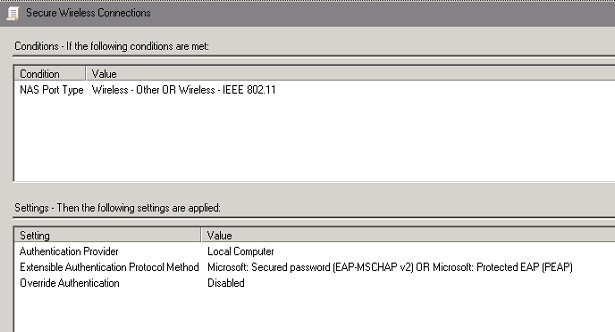
Policy Name: I picked “Secure Wireless Connections” and Enabled the policy
Conditions: NAS Port Type of Wireless-Other OR Wireless-IEEE802.11
Settings: I left these as the defaults as I wanted the Network Policy to dictate the authentication methods
wireless_02

Network Policies

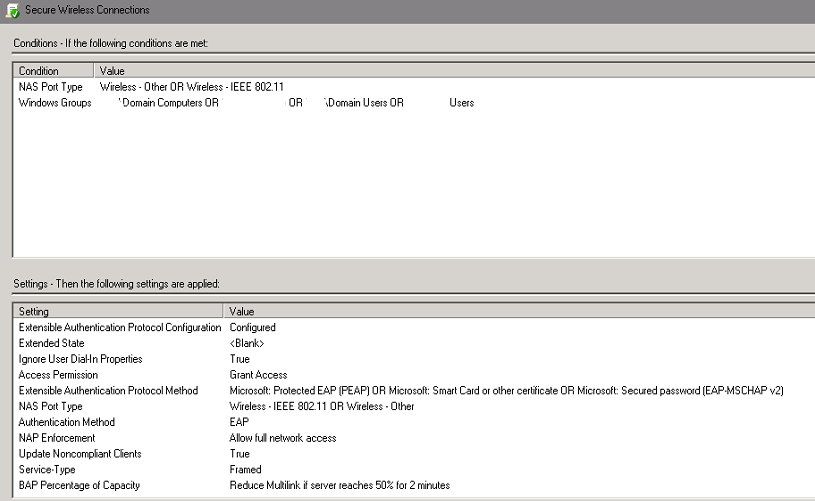
Policy Name: I once again picked “Secure Wireless Connections” and enabled the policy
Conditions: NAS Port Type of Wireless-Other OR Wireless-IEEE802.11 / Windows Groups of domain\domain computers and domain\domain users
Since I don’t feel like typing it all out, look at the picture.
wireless_03

Just point your wireless device(s) to your NPS/RADIUS server IP with the default port and away you go.


Now to get it with certificate-based security it was a bit more work:

I am assuming that you’re using an on-premise Certificate Authority and that it’s already up and running. In my case we have a 2008R2 CA already published in Active Directory. If it’s not published in AD, you can always have a GPO that pushes the trusted root certificate authority to all domain members.

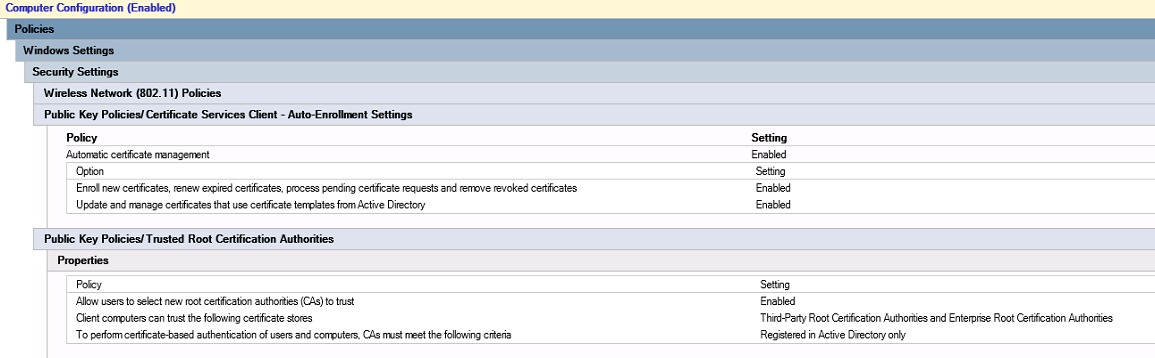
Anyway, I needed to set it so that every domain joined computer would enroll with a computer certificate against this CA, so I created a GPO called Wireless Settings (I don’t really like adding things to the default domain policy, so I end up creating new).
Under Computer Configuration / Policies / Windows Settings / Security Settings / Public Key Policies / Certificate Services Client – Auto-Enrollment Settings
wireless_04

From this I verified that computers had the appropriate certificates installed by looking at my MMC:
start, run, MMC
Add Certificates (Computer account) for the local machine
Verify there’s a certificate issued to your computername.yourdomainname.tld from the Certificate Authority with hooks into AD

wireless_05

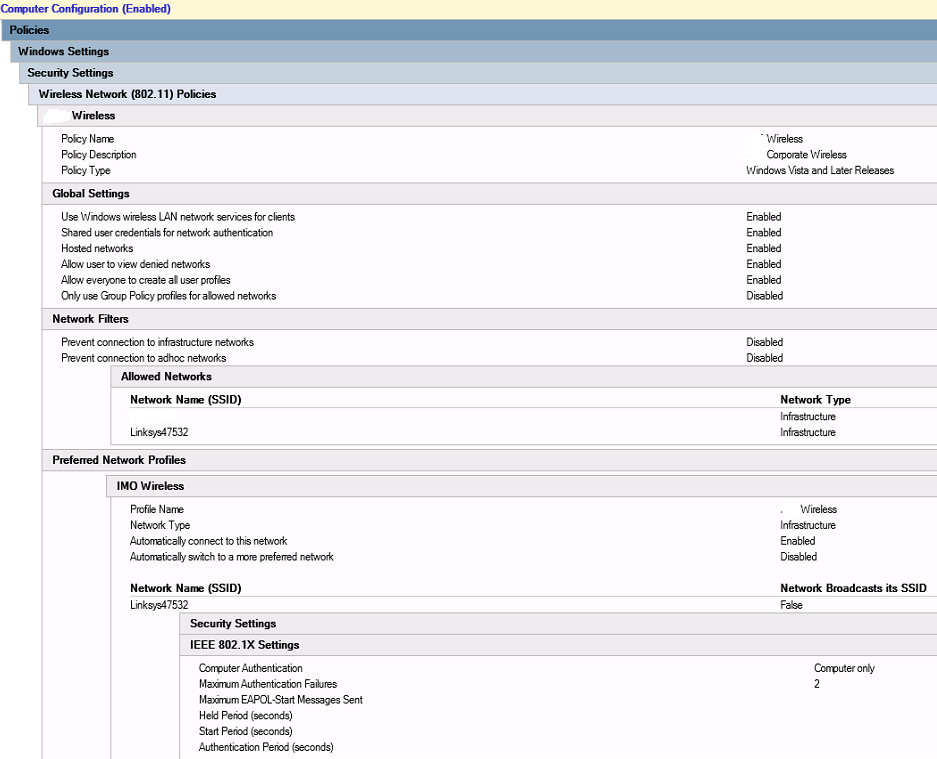
Now I finished up my Wireless Settings GPO with some Wireless Network (802.11) Policies. See the picture. Lazy.
The Profile Name will be the one displayed when people search for available wireless networks and, to the end-user, they will be connecting to this access point. You can actually publish multiple SSID’s under this name (I only have the “Linksys47532” name available currently).
wireless_06

You’d have to run
netsh, wlan, show interfaces
with an administrative command window to actually see the network being connected to.

When I get around to publishing a computer certificate that can be imported on an iPhone, I’ll update this post.

Android Playstore

I have an android phone now for only the second (third) time in my life:
1.) working for an MSP they required me to have their phone and it was a terrible motorola piece of garbage
2.) I bought a freedompop Samsung SII which had a battery that would last ~2 hours and was terribly slow
3.) I bought another freedompop LG Optimus F3 which has an awesome (so far) battery and is iPhone4-or-iphone5-peppy

I’ve been on the iPhone since the 3G came out, so it’s still somewhat different for me.

During updates on the LG phone I noticed that it was rather difficult to install new applications; I’d have to play around with rebooting it, turning the wifi off and on, laughing at it, and singing songs just to get a new app to install. In the play store I saw that google maps was constantly “downloading” but never finishing. I tried to stop it, didn’t work.

A day later, and growing more weary of how slow it was to download apps, I googled.

http://forums.androidcentral.com/samsung-galaxy-tab-10-inch/202017-google-play-store-not-working.html

btswein gave the answer:
“Clear the data and cache for google play”
Settings > Applications > All > Google Play > Clear data
or, on the LG
Settings > Apps > Google Play services (AND google play store) > Clear data

Then it magically worked much better! Thanks, guy.

Cord Cutting

So I “Cut the cord” back in 2013 after having ATT Uverse for a couple years. ATT had just informed me that my TV and internet rates would both be going up by a combined $30 a month, but that my internet speed had doubled (6Mbps up to a blazing 12Mbps)! Yay! So the service was cancelled.

An antenna was purchased from Crutchfield (Channel Master 4221HD)
While this antenna says “Mid-Range outdoor rooftop” I ended up just setting it up in the attic of the house and I get great signal strength (Channels 2 through 67+ all come in crystal clear)
I live roughly 30 miles away – line of sight – from the closest major city with broadcast towers
If I had a need (or more money) I probably would have settled on the Channel Master 4228HD for extended ranges
The antenna requires no power and I ended up re-using the existing coax run from the basement to the attic

Netflix and Amazon Prime apps on the TV. An AppleTV for connectivity to the mobile phones. Chromecast. XBMC (now Kodi) running on a raspberry pi is a major provider of entertainment as well.

The only complaint, after about a year of antenna TV, was the lack of a DVR function. I priced it out running MythTV/XBMC combo, but the cost of the computer in addition to the 30-35 watts of power used (about $3.50 a month in electricity) wasn’t ideal.

Then I read about the Channel Master DVR+ and was amazed! This is going to sound like a CM ad, but this is my experience so far.
I received the DVR+ and set it up with HDMI, power, and a wireless USB. I ran through the initial setup wizard and then updated the firmware. I could now pause live TV! But something was missing; it wasn’t automatically recording what I was watching so I couldn’t rewind. I grabbed an old laptop and a USB to SATA enclosure, did a little work, and then had a 250GB SATA drive external to the DVR+. After formatting all functionality was as it should be! $250 for this isn’t bad, although I had a USB wireless and external HD laying around already.

Ramblings Of An IT Person