Manage Wireless Networks Windows 8

I guess this is actually 8.1, but you get the idea. In 2000/XP and even Vista/7 it was fairly easy to remove old wireless network profiles in case there was something wrong (ie bad credentials saved). Windows 8, unfortunately, made it significantly more difficult and requires the use of an elevated command prompt (start > cmd > right-click run as administrator).

Show all profiles
netsh wlan show profiles

Delete a profile
netsh wlan delete profile name ="PROFILEHERE"

Display the security key (if applicable)
netsh wlan show profile name="PROFILEHERE" key=clear

Stop auto-connecting to a profile
netsh wlan set profileparameter name="PROFILEHERE" connectionmode=manual
Remote Management Exchange Mailbox Rules

CEO of the company had a rule to auto forward his calendar items to his personal secretary. Unfortunately, after about a year of service, this person was moving to another position.

The new IT rules stipulate that unless written permission from the VP of IT, President of the company, or CEO is provided that under no circumstances should IT actively connect to another user’s email box.

This makes it harder since the old way was to grant full permissions to their mailbox, attach it as a non-cached account, and then make any necessary changes.

The CEO was also travelling out of the country, so getting him on a phone call would prove difficult.

Powershell to the rescue! I did the following commands from the Exchange admin server, but this will work just as well right on the Exchange servers themselves, or even if you load the PS1 for exchange.
Get-inboxrule -mailbox USERNAME | fl > c:\text\outlookrules.txt
I opened this text file and searched for the name of the secretary – found one rule “If the message is meeting, forward to”

We can disable or remove the outlook rule as well.
disable-inboxrule -mailbox USERNAME -identity "THELONGNUMBERIDENTITYFROMPREVIOUSSTEP"
or
remove-inboxrule -mailbox USERNAME -identity "THELONGNUMBERIDENTITYFROMPREVIOUSSTEP"

Rancid Ubuntu 14.04 LTS

Recently upgraded the Rancid server from 12.04.3 to 14.04 (and it started as 10.04 from my rancid on ubuntu 10 install page).

Not everything went flawlessly: the upgraded killed the configuration file that said drancid is to be used for my dell switches. Not a big deal, just calling it out. I just following my “drancid” post somewhere else on this blog.

Then I noticed that some of the switches were EOF prematurely; turned out it was due to the fact that the exec and login banners on these cisco devices had the character “#” in them and the new version of having an issue parsing those out. Another easy fix.

Final problem was an error 500 on the web interface. In my brief research this was due to the fact that perl was upgraded to 5.18.x from 5.14.x
It should be noted that I learned about the rmadison packagenamehere command (installed with devscripts) which was fairly helpful. It should also be noted that there was not a lot of information on this error which leads me to believe that not many are using rancid on a 14.x or above system.

Troubleshooting this issue I ran (change depending on the user you’re running rancid under)
sudo login -f root
source /etc/rancid/rancid.conf
NOPIPE=yes;export NOPIPE
rancid -d switchname
nano *.new
nano *.raw
The full logs are the *.new and the *.raw files in the directory you ran the commands in.

So someone (a netbsd op) pointed out that there is a fix for this issue. In my case I’m running debian/ubuntu, so I actually found this article by Mark Kamichoff.

nano /usr/lib/cgi-bin/cvsweb
I searched for “legend” to get to the following:

 <legend>General options</legend>
 <input type="hidden" name="copt" value="1" />
 EOF
-    for my $v qw(hidecvsroot hidenonreadable) {
+    for my $v (qw(hidecvsroot hidenonreadable)) {
       printf(qq{<input type="hidden" name="%s" value="%s" />\n},

Searched again for “mytz”:

   print '<i>';
-  if (defined @mytz) {
+  if (@mytz) {
     my ($est) = $mytz[(localtime($date{$_}))[8]];
     print scalar localtime($date{$_}), " $est</i> (";
   } else {

Nas4Free Smartctl

Running 9.2.0.1 – Shigawire (revision 972) on some supermicro server with an Intel Xeon.

Noticed that I wasn’t receiving my weekly status emails so I finally got around to checking it out (system is running as a backup of a backup for my personal files, so not the end of the world if it doesn’t work right).

Logged in via the web interface and didn’t notice anything really going on except that out of the 4 available cores on the processor 2 were maxing out at 100%. Process listing showed smartctl was the culprit. Went into the ZFS settings (forgot no smart settings in there), and then tried to load up the Disk > Management area. No go – spinning and spinning.

Logged in using SSH to restart the web services
/etc/rc.d/lighttpd restart

Back in business, but then the Disk > Management area was once again crashing it out.

Issued a kill -s HUP thePIDhere. They came right back.

Rebooted the server. Smartctl was still coming up eating all of my available CPU time for reports.

I ended up renaming the smartctl bin file and then killing the processes.
It’s located /usr/local/sbin, then mv smartctl to smartctl.old or something

From there I could load the Disk > Management page again and disable smart monitoring.

And yes, the disks have all checked OK.

MS SQL 2008 Space

So we were getting alerts that our SQL server was running out of space. It was chewing through ~150GB a month.

Looking into it, we found out that our CRM (MS CRM 4.0) database was the primary culprit.

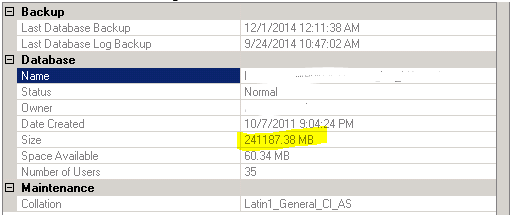
crm1
* Highlighted portion from another technician

I finally noticed something a little bit off; the Last Database Log Backup was listed as 9/24/2014.
In the SQL Server Management Studio, under Databases, I right-click and choose properties of the CRM database
I then selected the Files page (left side)
The PRIMARY rows data mdf was 56GB
The Log ldf was ~185GB

That might explain it!

So we went back and looked through the notes regarding this server. We had changed the Recovery Model to Full (same location under the Options page) in order to export a copy for our development environment. And this was never changed back.

Change this setting back to Simple and hit OK.
Then Right-click on the same database and choose Tasks, Shrink, Files
File type change to Log

In my case it showed available freespace of 99%. I clicked OK and the data usage went down to 1.25GB. Pretty big savings if you ask me.

Exchange 2010 Remove Mobile Device Error

Exchange 2010 environment fully patched. One user hit the 10 device threshold on Exchange activesync devices and IT was tasked with removing the association from that device.

Right-click on the user and manage mobile device. Attempt to remove the partnership (not remote wipe) and had an error:
The ActiveSyncDevice Cannot be Found.

Awesome.

Powershell to the rescue:
List all devices for an account
get-activesyncdevice -mailbox USERNAME | select DeviceID, Identity

List all details for those devices
get-activesyncdevicestatistics -mailbox USERNAME

Remove that activesync
Remove-ActiveSyncDevice -Identity $(Get-ActiveSyncDevice -Mailbox USERNAME | where {$_.DeviceId -like "DEVICEID"} | select Identity).identity

Apparently what happens is that when we decided to move all OU groups around (and memberships) Exchange doesn’t like that very much and forgets to update itself.
http://exchangeblog.pl/en/2013/01/exchange-2010-remove-mobile-device-error-the-activesyncdevice-cannot-be-found/

Add User Pictures to Active Directory, Exchange

Running Active Directory in 2003 mode (with 2x 2003 and 2x 2008 servers) and Exchange 2010 in DAG.

http://www.codetwo.com/blog/codetwo-active-directory-photos-1-1-2-new-fields-in-filters/

Ran through and installed the above executable, ran with my domain admin credentials, but I could not get the pictures to show up in Outlook no matter what I did.

Finally figured out it is an issue with the offline address book – rebuilt on the Exchange side and no dice. But deleted the cached folders on my local machine and it worked fine. There’s also a registry key to help out:

Close Outlook
Delete everything in C:\users\yourusername\appdata\microsoft\outlook\ofline address books\
Open Outlook
Profit

Registry key:
[HKEY_CURRENT_USER\Software\Microsoft\Office\15.0\Outlook\Cached Mode]
“DownloadOAB”=dword:00000000
Either create the key “Cached Mode” and then the 32bit dword “DownloadOAB” as 0 or save the above as a .reg file and then run that.

Ramblings Of An IT Person